 |
|
||
|

|

|
|||||||
| Other recent Samsung smartphones Other recent Samsung smartphones (last 3 or 4 years) |
 |
|
|
Tools

|
|
# 1
 12/04/19, 09:03:16
|
||||
|
||||
 Installing custom FW S3650XEIJ2, patches and themes on Samsung Corby GT-3650 (ultimate guide)
Today I bring you a retro guide of the Samsung Corby GT-3650 launched at the end of 2009 internationally.
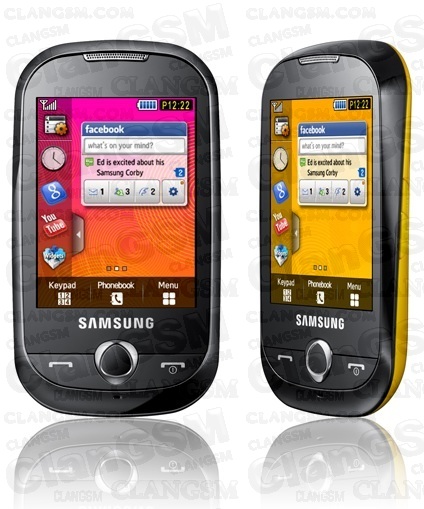 The content of this tutorial has been obtained from Russian, Indian, Brazilian pages and from my own experience over the days I have been researching and putting into practice everything detailed here. Let's start with the necessary files: Samsung New PC Studio MultiLoader 5.56 S3650XEIJ2.7z (official FW) Files to create custom FW: Samsung Corby Jelly Bean 4.1 by Sarai_001.zip In this ZIP you will find the following files: Res (a folder) Amss_patch.bin jellybean4.1.rc2 Basically, those are all the files we need at the beginning. Now I will explain a little about what each one is for. Samsung New PC Studio : official Samsung program that will help us make backup copies of our files (contacts, calendar, etc.). To copy multimedia, it is better to connect the mobile as mass storage. I recommend using the official cable, other ones that were not from Samsung did not work for me. MultiLoader : unofficial program that will allow us to install the official FW and the files to modify it and turn it into a custom one. That is, with this program we will install everything. S3650XEIJ2.7z : Official FW. It is the FW that the community worked on to make it compatible with modifications, DO NOT install another one. res (folder): contains all the images, gadgets and various types of visual media. This folder is copied to the root of the phone and more images, sounds, gadgets, etc. can be added to it whenever we want. Amss_patch.bin : this is the main file, it manages to modify and adapt the system to make it compatible with modifications. On the Internet it can be found with various names, but always in BIN format. These are some of its other names: Apps_patch.bin, Amms.Patch.Android.4.0.bin. jellybean4.1.rc2 : it is a compilation of the most important patches to modify the system to our liking. It can also be found on the Internet with other names, for example: AIO.rc2, C.rc2, Patch Android 4.0.rc2. Individual patches are usually in SYS and SMP format. There is a program with which you can compile the patches you want and create an RC2 file. The program is found with this name: QuB_public_v.0.3_001_beta.rar . It is not essential, since we already have the BIN patch (QuB also serves to modify the BIN of the official FW and make it custom) and the compilation of more than 50 patches in a single RC2. We prepare our terminal: Make sure that the mobile has the SIM LOCK set to OFF, otherwise the phone will be useless/dead.. To see this you have to dial the following number: *#7465625# if sim lock off appears, you can continue, otherwise abort the mission of this tutorial. Activate or Deactivate SIM Lock *7465625*28746# Activate SIM lock #7465625*28746# Deactivate SIM lock If you have SIM LOCK set to OFF, we continue: We create a backup of all the data we want to keep. Menu\Settings\Phone\PC Connections: Samsung PC Studio, Save and connect the phone to the computer with Samsung New PC Studio installed to make the corresponding copies. With the Multimedia Player mode we can directly access the phone memory to create a copy of the folders. With the Mass Storage mode we will access the microSD. We extract SIM and microSD. Charge to 50% or more. We check what FW our mobile currently has: we dial the code *#1234* in the phone application. Write down this information in case you ever want to reinstall the same FW. Optional: do a full wipe with the following code: *2767*3855#. It will take a few minutes, if the phone does not restart after turning off, turn it on again. Leave the Samsung PC Studio mode activated on your phone. Put the phone in Download mode by pressing the following combination with the phone off: Volume down + Camera + Hang up  We connect the mobile to our PC. We unzip S3650XEIJ2.7z. We unzip Samsung Corby Jelly Bean 4.1 by Sarai_001.zip. Installing the official FW : We start MultiLoader with Administrator permissions.  We select BRCM2133. We mark Boot Change, Full Download and Master Rom. Only those three. Now I tell you which files to put in each section: Boot : BOOTFILES folder (located in S3650XEIJ2\COMMON\BOOTFILES) Amms : apps_compressed.bin Rsrc1 : Rsrc_S3650_Open_Europe_Slav.rc1 Rsrc2 : Rsrc2_S3650(Low)_CIS.rc2 (located in S3650XEIJ2\EACH COUNTRY\CIS) Factory FS : FactoryFs_S3650_Open_Europe_Slav.ffs (located in S3650XEIJ2\EACH COUNTRY\CIS) In Amss, FOTA, Tune and ETC we do not put anything. Press Port Search several times until a message appears saying "Ready - [S3650]" (if only "Ready" appears, press the button again). Now, very important: check that everything is done correctly before performing the installation. Make sure that all the files are correct and that you have checked all the correct options. There are small boxes next to each section (Boot, Amms, Rsrc1, Rsrc2 and Factory FS), check that they are marked with a tick. Press Download . It will take about five minutes to finish the installation. When the message "All files complete" appears, the installation will be finished. Disconnect the cable and remove the battery from the phone to exit Download mode. Turn on the phone and wait until the system boots up completely. Check what FW your phone currently has: dial the code *#1234* in the phone application. If it says S3650XEIJ2 we will have finished installing the official FW. Custom FW installation : Leave Samsung PC Studio mode activated on your phone. Put your phone in Download mode. Connect your phone to your PC. Start MultiLoader with Administrator permissions. Select BRCM2133. Check Boot Change and Full Download. Only those two. Now I will tell you which files to put in each section: Amms : Amss_patch.bin (found in the ics jelly bean theme folder) Rsrc2 : jellybean4.1.rc2 (found in the ics jelly bean theme folder) Do not put anything in the other sections. Click on Port Search several times until a message appears that says "Ready - [S3650]" (if only "Ready" appears, click the button again). Now, very important: check that everything is done correctly before performing the installation. Make sure all the files are correct and that you have checked all the correct options. There are small boxes next to each section (Boot, Amms, Rsrc1, Rsrc2 and Factory FS), make sure they are marked with a tick. Click Download. It will take about five minutes to finish the installation. When the message "All files complete" appears, the installation is complete. Disconnect the cable and remove the battery from the phone to exit download mode. Turn on the phone and wait until the system boots up completely. How to access the patch menu : Turn off the phone. Press the lock button (above the camera button) and the power button at the same time. When the phone shows the first sign of turning on, release the power button. When the patch menu appears, release the lock button. If the system boots up and the patch menu does not appear, something has been done wrong. Keys in patch mode: camera button: select lock button: save changes center button: turn page (to see more patches) volume up and down: navigate up and down call key: back In order to see the theme change (and thus start to see the advantages of custom FW) we mark the following options. To mark and save the first patch I will show you the button combination: Camera button. Volume up. When we are in "12. change gadget": Camera button. Lock button. We do the same with the following patches: 14. change menu 15. change myfiles The ones on the first page of the patch menu (from 1 to 12) are basic, you can leave them all marked. After saving the changes, press the call button several times to return to "Main Menu". Select "2. Restart" and press the camera button to restart and see the changes. Last edited by Ipho on 04/16/19 at 04:44:35 . 
|
|
|
|
# 2
12/04/19, 15:50:47
|
||||
|
||||
|
Patches and their function
The names and order are not exactly the same, but the names are very similar (sometimes only the order of the words changes, if you are looking for a specific patch, use ctrl+F to search for part of the patch name).
1 - Patch Loader - MasterPatch.Sys - patch.bin : These are indispensable for all the remaining patches because they are the ones that carry them. 2 - Change SWF : includes the following patch in one: Change Menu : Change Corby's menu, the menu should be located in the ... /Res folder. Change Gadget : change bottom bar. Change MyFiles : Change colors and icons of the Cellular folders. Through the MyFiles.swf file which should be in the Res folder 3 - LowBatRestrictOff : removes the access restriction to Java, Internet, Music Player and more... When your phone's battery is running low. 4 - Java - JavaHideSilentPopup, JavaLcdOff, Java on mmc : It is a single patch that includes these 3 Java related patches. JavaOnMMC : Allows installation of Java applications on the memory card. JavaLCDoff : The patch fixes the cell lights in Java. That is, the lights go according to what you have configured on your mobile. JavaHideSilentPopup : When you are in silent mode, Java will not ask you if you want to make a sound in the application, it will not play the sound. 5 - colortbl : Changing Corby colors, colors and fonts of its backgrounds. ColorTBL.rsb and color.bin files should be in the Res folder 6 - SaveCallLog : Call logs are not deleted after changing or removing the SimChip. 7 - New Fonts : Allows installation of new fonts in Corby. They should be renamed correctly and located in the Res / Font folder. 8 - QuickOnOff - Removes the Music ee Samsung's Home screensaver on Mobile. It depends on the Power.ini file which should be placed in the Res folder 9 - Flash Player - Replaces part of Mobile Help with Interactive Flash player. Be able to play flash games. You should archive game.swf and the games whose name changes to 1.swf, 2.swf, etc... The whole Res folder 10 - VibOnCall - When the phone is connected it vibrates. I find that very annoying and that's why I leave it out. 11 - Google to Opera - Changes the launch of Google Maps, Opera Mini app from. It should be installed natively on the system [FFS - Java blocked] Opera Mini with the name. 12 - Mute Power Save - Removes the message that the battery is running low. 13 - Call Unlock LCD - Unlocks the screen when you are on a call. 14 - Wo HeadSet Radio -Listen to the radio without a foninho (headphones). 15 - Mega on Off: Help QuickOnOff, removing the Samsung and Sons screensaver. 16 - Check Sign Off: Remove the question: "This content is not signed. Do you want to continue?" On the installation of Java applications. 17 - CameraBGM: Removes the restriction on Radio and Music to listen while the camera is connected. It is disabled by default because the phone locks when opening the camera. 18 - KeyLockVib: Adds a small vibration when unlocking the phone. 19 - SkinColor: [REMOVED FROM EXTREME] acts together with colortbl to change the colors of the cells they used in the CorlorTBL.rsb file and allowed to choose between several colors in the menu to choose from Corby Themes. REMOVED BECAUSE IT ADDED TO OTHERS' PATCH THE MOBILE FOREVER AND THE RESET wouldn't care! 20 - Replace SWF2FFS: Changing default location of files: Gadget.swf, MainMenu.swf and maybe MyFiles.swf to /Res/Flash folder. (check if someone tells me my files if I should or should not enter this patch). 21 - Change Sound Patch: Changing most Corby sounds to ones that should be in /Res/Sound folder. 22 - AniNew Disable: Disable screen protection and Samsung SimChip loading screen. 23 - HideSThumbDB: No SThumb.db file shows most of the time created on Windows. Mysterious file ashuhaushauAUSHU. 24 - EasyAdminMenu: Changing passcode to Corby internal menu. Since *#3333#. 25 - New PhoneLock: Changing screen to unlock Corby. New screen should be in /Res/System folder. 26 - MP3 Auto Return - Remove the message: "Continue playing music". 27 - Increase Ring Remove - Removes the increase ringtone on the melody. It is set directly to the volume that was set in the active profile. 28 - Hold Key Unlock Off - Removes the ability to unlock the phone by holding down the side lock button. INCONSISTENT WITH KeyLockVib. 29 - Main Menu Back Key - Allows you to open the Menu by pressing the center button once towards Corby. 30 - Change BlueMusic - Replaces the Corby Bluetooth and also the icons and colors and the music player. Need files: Bluetooth.swf and MusicList.swf Res folder 31 - Key Music Control - Allows you to control songs by buttons: Off, Answer Button and Center Corby. INCONSISTENT WITH SmartHandsFree. 32 - Main Menu Preview - In theory this file allows you to preview the Corby menu, according to a renamed file Preview.swf, which should be located in the Res folder. I don't know how it works in practice, since there is no theme where the Russians come from. particular file 33 - SmartHandsFree - Possiblitava changing tracks with volume keys that are supposedly held down DISABLED BY DEFAULT. INCONSISTENT WITH Key Music Control. 34 - Default in SMS Phone - Guard releases cell only after SimChip memory is full. 35 - KJXDispatch.ini Change - Change the file that is installed in the KJXDispatch.ini Firmware [FactoryFS]. I see no use in this file. 36 - Fast Double SMS Send - Remove warning when sending more messages and SMS at the same time. 37 - FunctionLib - Needed for almost all remaining patches like the master patch. 38 - Java Hide BGM Popup - Allows you to listen to music or radio while playing Java applications. 39 - Talker - Adds an announcer for Corby numbers. Changes the pronunciation of the time, pronounces each number in the keyboard manual. Works with a single MP3 file containing all the spoken numbers. This file is called samples.mp3 and must be in the / Res / Sound folder. And for the pronunciation of the time you need hour.mp3 file in the same folder. PATCH, BECAUSE IT IS COMPLICATED, BECAUSE THE PORTUGUESE IN THE SECONDS OF PRONUNCIATION REQUIRED FOR THIS PATCH IS VERY DIFFICULT TO FIND AND PRONOUNCE THE PORTUGUESE LANGUAGE. INCOMPATIBILITY WITH Back Key Main Menu. 40 - Easy ScreenShot - Patch allows you to take Print Screen Corby, through it. Set in Settings / Display and Light / ScreenShot. To print, press the camera. Screenshots are located in the Pictures/Screenshots folder. It is simply not possible to OPEN the camera with your key. Taking pictures with the DA button. 41 - FastMenu: Allow TaskBox.swf to hold down the middle button on Corby. The taskbox should be located in /Res/System. 42 - Change AlarmPopup | Updated: Change the Alarm Clock display in Corby to a file named AlarmPopup.swf located in /Res/System. Enable the alarm to turn off by pressing the off button. 43 - Change TimerPopup | Updated: Change the Alarm Timer Corby display to a file named TimerPopup.swf located in /Res/System. Enable the alarm to turn off by pressing the off button. 44 - Change Calculator | Updated: Changed currency in the Corby to a file named Calculator.swf located in /Res/System. 45 - ImageViewer Change: Changed the Corby Image Viewer to a file called ImageViewer.swf located in /Res/System. I think this viewer is still very poor compared to the standard Corby. 46 - ExtRenameMod: Rename extensions by the Corby. 47 - Gadget FSCommand Add: Add more commands to Gadget.swf 48 - Java Auto Return: Remove the Java continue question. 49 - Time for Low Popup: This patch I couldn't find who created it for information! But I think the name is a patch that reduces the time for any Corby message or alarm. 50 - Video Size Large: This patch I also couldn't find who created it for information. But I also think the name is a patch that allows access to large video sizes. Source . Last edited by Ipho on 04/14/19 at 10:10:24 AM .
|
|
# 3
12/04/19, 17:41:46
|
||||
|
||||
|
Patches I recommend
Unlike the previous comment, the numbers I indicate will be the same ones you will have if you have followed my tutorial.
I will only put the numbers, but in your patch menu you will be able to see the names. Warning: not all patches are compatible with each other or recommended. If you do not want to complicate things too much, activate the ones I suggest below. 1-12 15-17. 20, 23 and 24. 14 is to activate menu.swf (custom menu), but all these menus do not work as smoothly as the factory one and are always in other languages (English, Russian or Portuguese). 25. 32-35 41, 42, 44 and 47 49-51 Patches that I do not recommend but that might interest you: 43. NewFonts (used to change the font according to the files you have in the res\font folder). The problem is that many unofficial fonts are not made for Spanish. So you may find that letters with accents appear larger and bolder, for example. Check your phone's Settings again, as new features will have appeared. For example, at the bottom of "Display & lighting" you will now find "ScreenShot". It is disabled, so you can enable it. To take screenshots, just hold down the camera key. The images will be saved in Images/Screenshots. By the way, unfortunately, every time you restart your phone you will have to set the wallpaper you had chosen again, as for some strange reason the change is not saved. Last edited by Ipho on 04/14/19 at 10:06:46 AM .
|
|
# 4
12/04/19, 18:06:00
|
||||
|
||||
|
Details
If you have already done all of the above, now it is time to tweak the system to suit your taste.
First: go to Settings and configure all the sections. It will take you a few minutes. Second: with our custom FW we have three things hidden on the home screen: 1. Notifications panel (sliding your finger from the top to the bottom). I don't know if it really shows all the notifications (SMS, calls, emails, etc.) or if it's just for show, but it's there in case you're interested. The date and time are displayed incorrectly, as is the lock screen. At the moment, I don't know how to fix it, since it's not the time you set in the Settings application. To exit the notifications panel, neither the central key nor the hang up button works, you have to press the arrow that you see at the top right. 2. Hidden menu of the custom FW (Personalize Home). You can access it by pressing any unoccupied spot on the home screen. To exit each section you have to press "Tap To Back" or "Personalize Home", the physical buttons do not work with most custom menus. You have these four options: Shortcuts: shortcuts. Wallpapers: desktop backgrounds. Widgets: to add tools to any of the three screens of the phone (each one is accessed by moving the finger to the left or to the right). The options that come standard are Clock, Music and the Google search engine. Phone Setup: to do five things: restart, activate/deactivate airplane mode, activate silent mode, see an "easter egg" and activate normal mode. Silent and normal mode deactivate airplane mode. To exit the "easter egg" and Phone Setup you have to press any part of the screen not assigned to any option. 3. Quick Menu: it is something like a multitasking menu of today. These options can be quickly accessed: Phone (translated as "keyboard") SMS Menu Contacts Internet (browser) Games Previous song, pause, next song Radio Music Last edited by Ipho on 12/04/19 at 18:25:06 .
|
|
# 5
12/04/19, 18:12:32
|
||||
|
||||
|
Applications
This phone can be used to install applications in JAR format, and thanks to the JavaOnMMC patch, we can also install them on the microSD (which is very positive, since the phone's internal memory is terribly scarce).
You can find many of them here: https://es.java.mob.org/screensize/240x320/samsung (the best site for games, but it doesn't have any other kind of applications). By the way, for our phone: 240x320 http://es.java-ware.net/download-app... g-corby/1/ date http://es.phoneky.com/java-software/?v=3 (doesn't seem very reliable, use it only if you want to find a modified app or as a last resort) http://samsung-s3650-corby.oms.apps.bemobi.com/es_es http://samsung-s3650-corby.oms.apps....hp?soft=search http://java.apps.opera.com/es_es/download_0 (it's better to enter from your phone, since the browser often redirects you to the HTML5 app store) For apps, the best store is Opera; but as you've seen, it has some problems. And here's the biggest problem of all: it only downloads JAD files from your computer, so to complete the installation you need to have your Corby with Internet access. So, I recommend the following in case you download the applications from your mobile: Search by categories: http://samsung-s3650-corby.oms.apps....categories.php Search for a specific application: http://samsung-s3650-corby.oms.apps....hp?soft=search .......... Update: In the end, I see that the best store for applications is: http://es.java-ware.net/download-app...g-corby/1/date Download the JARs without problems, it has a search engine and all the applications are organized by upload date, popularity, classification and name. For games the best is: https://es.java.mob.org/screensize/240x320/samsung Remember that our screen is 240x320. Create a folder in the microSD with all the applications, leave the little internal memory you have free. Last edited by Ipho on 12/04/19 at 21:13:08 .
|
|
# 6
12/04/19, 21:42:22
|
||||
|
||||
|
Things I don't like and will see if I can change:
Bottom bar. Lock screen. I'm not going to use MultiLoader anymore, in case it messes up all the progress I've made since I last used it. So I have to play around with the files in the Res folder. These are usually SWF files for the things I want to change, and I think they load just by replacing them in Res and rebooting. Examples: Menu: Menu.swf Start bar (bottom): Gadgets.swf Change file explorer layout: MyFiles.swf The patch that allows these Res folder changes is Change SWF , which we've already enabled previously. Cool lock screen example: .png)  iPhone menu icons:  Better start bar and notification panel: 
Last edited by Ipho on 04/14/19 at 08:51:20 .
|
|
# 7
12/04/19, 22:18:23
|
||||
|
||||
|
Important codes (entered as if they were phone numbers:
*#5239870*# = Administrator Menu. There are several sections in this menu and some of them ask for two types of password: Master Key and Operator Code. These passwords vary depending on the phone operator (also the code to access the Administrator Menu, apparently. These are mine (it took me a while to find them): *#7092463*# = Master Key (with this we access the Internals section). A lot to fiddle with. *#27236*# = Operator Code (with this we access the Pre-configuration section). Basically, what it allows is to reinstall the operator's firmware (Vodafone in my case). .... JAVA OUT OF MEMORY AVAILABLE Sometimes you will get this message while playing java games. STEPS TO FIX- 1. go to call and enter *#5239870*# to access the administration menu. 2. go to internals 3.Enter master key *#7092463*# 4. go to storage settings 5. click on refresh Java DB INCREASE MOBILE MASTER VOLUME Steps- 1. go to call and enter *#5239870*# to access the admin menu. 2. go to internals 3. enter master key *#7092463*# 4. go to test mode 5. go to audio by pressing 5 6. go to SPK settings by pressing 3 7. go to SPK Wave/MP3 by pressing 4 8.go to SPK MP3 by pressing 5 9.go to SPK MP3 Slop Gain[*] by pressing 1 10. press 6 [14] .... 11.select the text box and enter 511 12. press OK twice 13. it would be blank wait 5 seconds, the screen with the options would appear again with [14] changed to 511 14.do, press the red button to exit, play a song and see Last edited by Ipho on 04/16/19 at 06:35:30 .
|
|
# 8
04/14/19, 10:30:10
|
||||
|
||||
|
Changes I made at the end:
Theme changes (Gadget, Menu, MyFiles). The theme is Android Optimus, although I didn't activate menu.swf in the patch menu, since I prefer the factory menu. Anyway, the custom menu I liked the most was Android Jelly Bean 4.1. As lock screen I kept locks for corby\1. I also installed an Amss_patch.bin created with QuB from the apps_compressed.bin of the official FW, but I haven't noticed any changes. I thought I could modify the patch menu to be displayed like this: 1) Patch menu - manage patches from the menu. 2) Info - Information about the phone. 3) Tools - Utilities like dumper through UART 4) Reboot - To reboot the phone Options 2 and 3 are not shown with the patch menu we got in the tutorial I made at the beginning. Although they are not important options. I also wanted to see if the new Amss_patch.bin changed the wallpaper in the patch menu, but that didn't work either. Maybe this all depends on the modified RC2? I'll now try to install new patches compiled on a new RC2 with QuB. Along with my personal Amss_patch.bin. Last edited by Ipho on 04/14/19 at 10:37:52 AM .
|
|
# 9
04/16/19, 04:10:25
|
||||
|
||||
|
I am going to install my own RC2 (without pre-activating the patches, otherwise you get a bootloop) and Patch.bin (both created with QuB). Steps:
Remove SIM and microSD. Disable all patches, save and reboot. The only two that cannot be disabled are Masterpatch and Loader. When the system boots up, delete the entire res folder from the phone itself. It will take a few minutes, I estimate it took two in my case. It shouldn't take more than five. Reboot. Activate Media Player mode and save changes . Copy the new res folder (prepared for my RC2 patches) to the root of the phone's memory, as always. Check from the phone that the folder is OK. Activate Samsung PC Studio mode and save the changes. Shut down and start Download mode. Start MultiLoader as Administrator. I set BRCM2133, Boot Change and Full Download. I insert my Patch.bin into Amms. I insert my RC2 into Rsrc2. I press Port Search until it is Ready. I check that everything is done correctly before installing, that all the files are correct and that all the correct options are checked. There are small boxes next to each section (Amms and Rsrc2), you have to check that they are marked with a tick. The installation takes two seconds. The phone usually reboots automatically and no data or system settings are lost. In case it does not reboot, you have to remove the battery and start again. The patch menu is now updated, since in this RC2 I have installed MasterPatch 2.0 (along with a new Loader.bin that must be set to Default in QuB). Although I still only get two options at the beginning, instead of four (as I mentioned I had seen in some thread on the Russian forum). All in all, I now have 57 patches, the more aesthetically pleasing blue background (which was the one I was looking for) in the patch menu (I think thanks to the new Loader.bin) and the 2012 MasterPatch (the other one was from 2010). I also have a new boot logo. I got a bootloop from having initially made an RC2 with all the patches pre-activated, but fortunately it was just a minor scare that was solved by removing the battery and entering Download again to load an RC2 without pre-activated patches (except MasterPatch). Last edited by Ipho on 04/16/19 at 06:24:51 .
|
|
# 10
04/16/19, 06:20:32
|
||||
|
||||
|
New order of activated patches:
1. MasterPatch 2. BackKeyMainMenu 3. CallUnlockLcd 4. CameraBGM 6. ChangeAlarmPopup 7. ChangeBlueMusic 8. ChangeCalculator 9. ChangeImageViewer 10. Change_Sound_Patch_v1 11. ChangeTimerPopup 12. change gadget 14. change menu 15. change myfiles 16. CheckSignOff 17. ColorTbl 20. EasyScreenShot 23. FastMenu 24. FunctionLib 25. GadgetAddFsCommand 29. JavaAutoReturn 30. JavaHideBGMPopup 31. JavaHideSilentPopup 32. JavaLcdoff 33. java on mmc 35. KeyMusicControl 37. MainMenu_Preview 39. MP3AutoReturn 40. MutePowerSave 41. NewOnOff 42. NewPhoneLock 44. FlashPlayer 47. RadioWoHeadSet 50. SaveCallLog 52. SkinColor 54. SmsDefaultInPhone Source Last edited by Ipho on 04/16/19 at 06:23:08 .
|
|
# 11
04/16/19, 06:39:34
|
||||
|
||||
|
Origins
Now that I've finished this tutorial (which I never thought would take me so long) and almost finished the adventure with the tinkering with this old phone, I'm attaching the link to how it all began:
What was it like to modify phones from decades past? C++, Java, etc.
|
|
 You are here
|
||||||
|
||||||


![Array [xs_avatar]](https://avatar.htcmania.com/avatares/avatar1016394_3.gif "Array [xs_avatar]")
