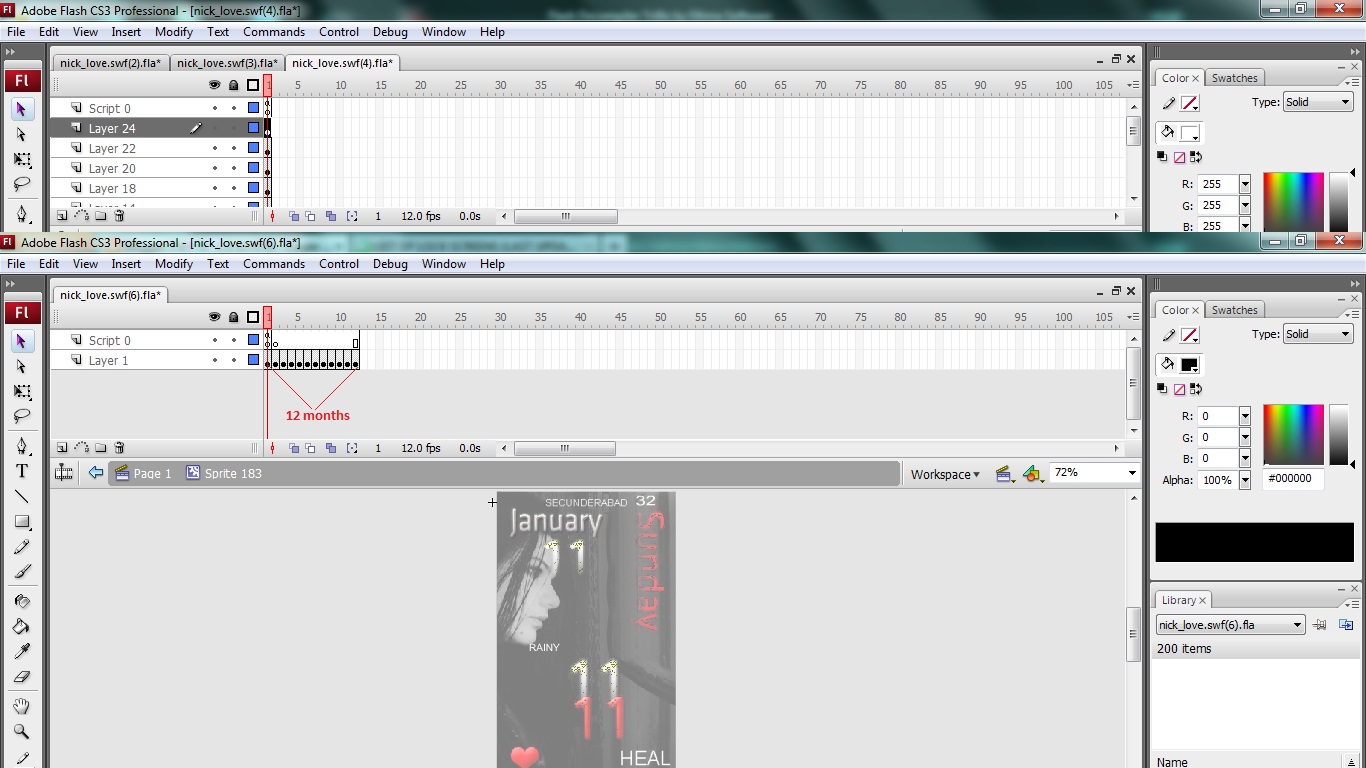
Hello friends. In this post I am going to guide you as to how you can make a simple lock for your phone . I will use Actionscript 2.0 here and will make a text based Typophone lock. So let’s get started
Software Required:
 Adobe Flash CS3/CS4/CS5
Adobe Photoshop (just in case you want to make your own graphics)
Procedure:
=> Open Adobe Flash and select Flash File (Actionscript 2.0) as shown in the screenshot.
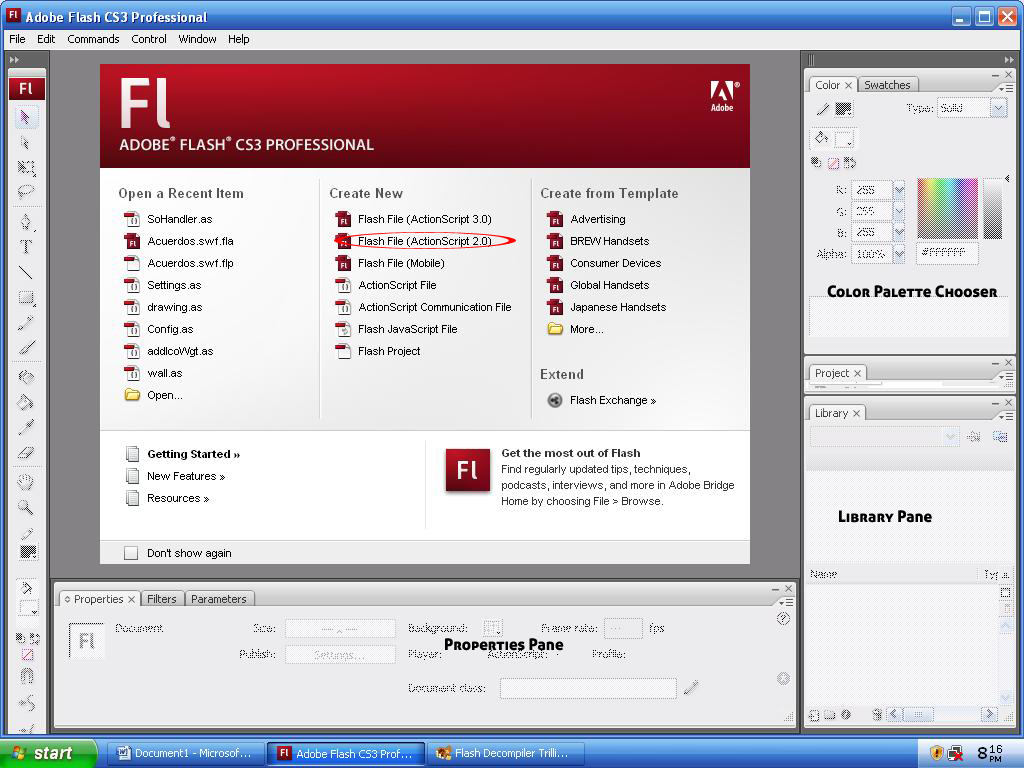
=> Set the screen resolution as 240x400 from properties pane as the resolution of our phone is 240x400. Also set the background color as black.
First we will make the clock..
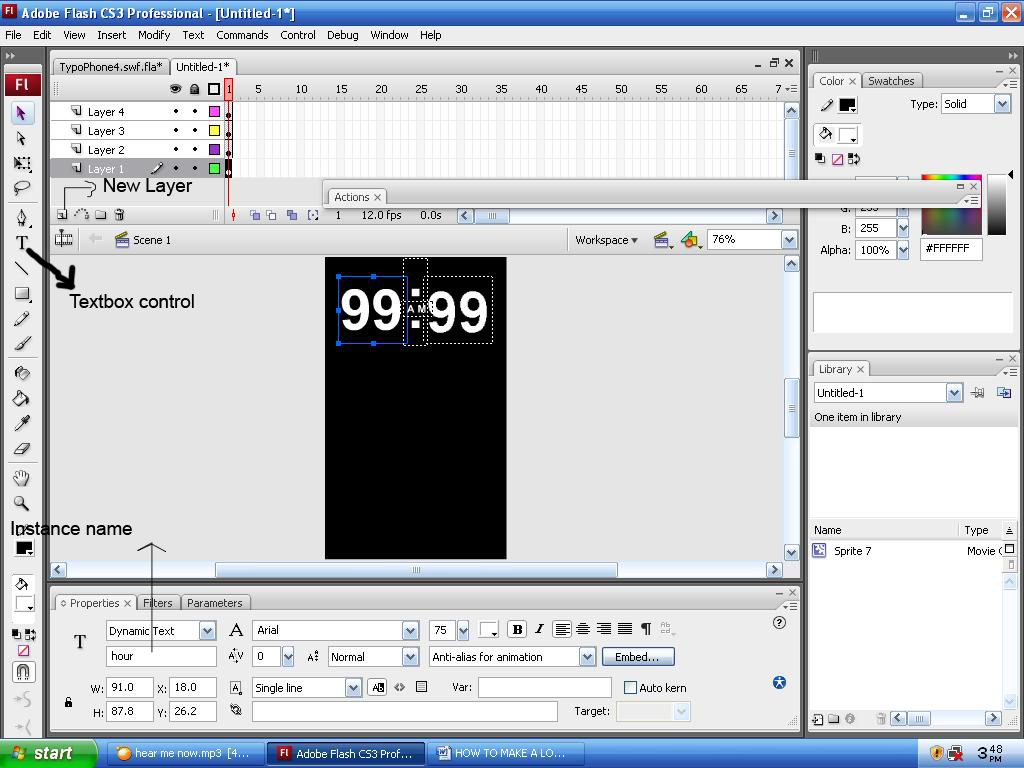
=> Take 4 text-boxes from the toolbox and put it on the workspace. Make sure that each text box is on a different layer. Arrange it as shown in the screenshot. Write some dummy values in the text box so as to get an idea about how the text will look when run on phone.
=> Set the instance name as follows:
                For hour indicator      => hour
                For minute indicator  => minute
                For AM/PM Indicator => ampm
For clarifications, look at the screenshot below
 => Now select each text box one by one. Click “embed” in the property pane and select the options as shown in image and press OK. It makes your swf independent of the phone font that you use.

 => Select all the four textboxes, right click and select “Convert To Symbol”, Check the Movie Clip option and click OK and set the instance name of the movieclip as Clock.
=> Now your clock movie clip is ready. Lets go and make a movie clip for Calendar.
=> Similarly as above, take 4 text boxes on the workspace for storing date, month, year and day. Make sure that each textbox is on a different layer. Set the font size of the textboxes as you desire. As I have set them in a way I want to use them as shown in screen shot.
=> Give the instance name as follows:
                For date indicator            =>           dte
                For day indicator              =>           dy
                For year indicator             =>           yr
                For month indicator        =>           mnth
=> Now, embed the same way as before and make another movie clip by selecting the 4 textboxes that we are using for the purpose of making calendar. Also set the instance name of the movieclip as Datemv.
Now is the time for having a weather movie clip. Making weather clip from scratch is a time taking process, so just decompile any theme having weather and copy the weather movie clip and paste it on your workspace. Double click the weather clip and you will see that there are a series of graphics for each kind of weather condition. You can always change it as you desire. That’s why I told you that its better to get it from other themes. Resize the graphics as required by you in the weather clip and you are good to go.
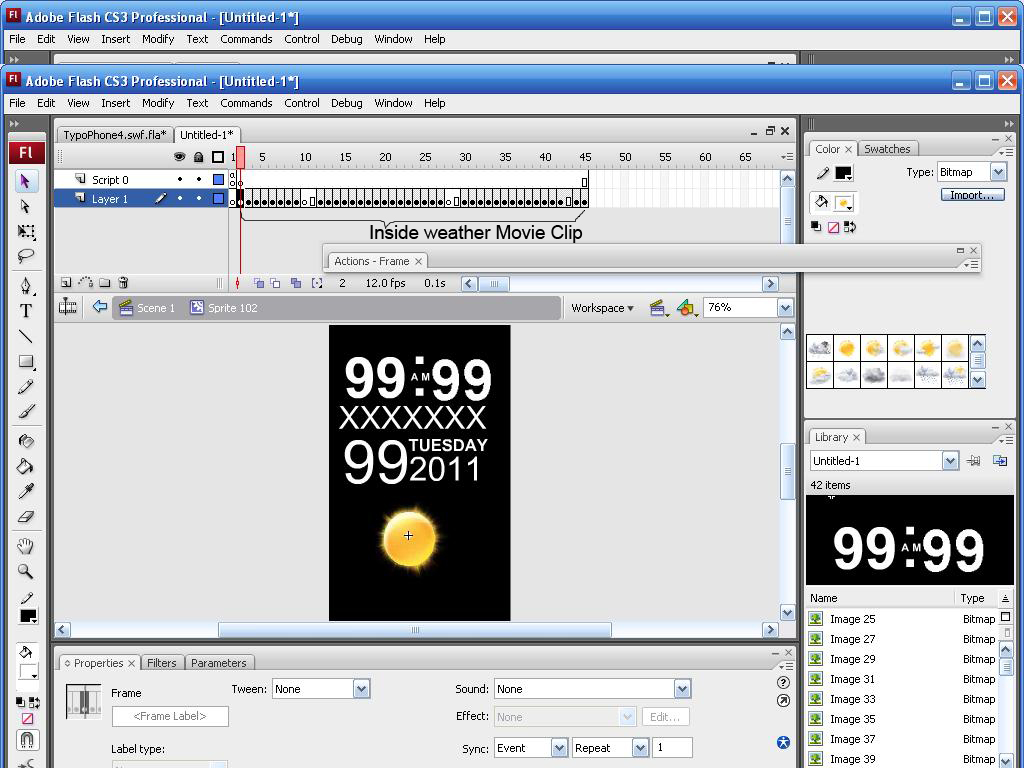
 =>Now take four text boxes for showing the temperature, city, climatic condition and min/max forecast as shown in the screenshot below.
=> Set the instance names as follows:
                For temperature indicator           =>           temp
                For temperature condition          =>           condition
                For min/max temp                     =>           minMax
                For city name                            =>           cityName
=> Now that everything is ready, I want my lock to have slide to unlock feature, so I made an arrow in Adobe Photoshop and dragged it on to the workspace.
=> Now right click on the arrow and select “Convert to symbol”, check “Movie Clip” and click OK.
=> Write a text “UNLOCK” in text box and place it at the right side of workspace.
=> Now select both arrow and textbox and convert it to movie clip by following the same procedure as stated previously.
=> Now double click this movie clip and then click on arrow movie clip so that you can see the x and y coordinates and you can see that the x coordinate of arrow is 0 and x coordinate of UNLOCK text is 130
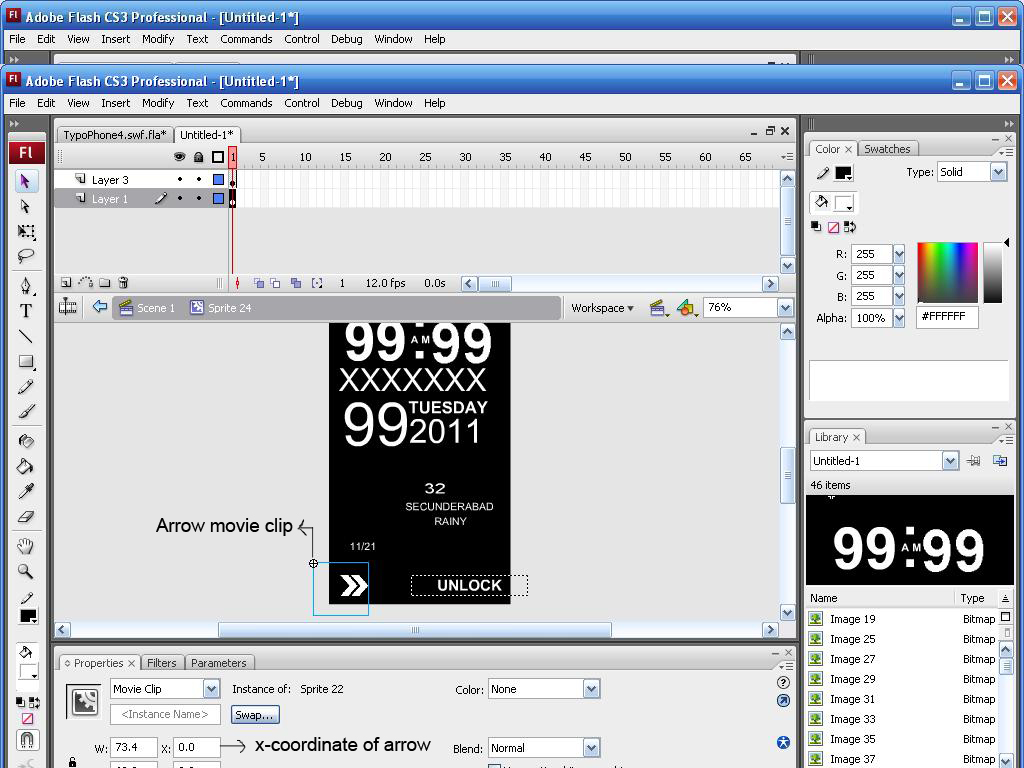
 => We are considering X coordinate only as we want the pointer to move in x direction and not in y direction. We want the screen to get unlocked when the arrow moves from 0 to 130. So we must be using these values in our code.

CODING:
Now as we are done with the design part, its time to code them to perform the desired functionality.
Select the arrow movie clip, press f on keyboard to open code window and paste the following code:

on(press)
{
    this.startDrag(false, 0, 0, 130, 0);
}
on(releaseOutside, release)
{
    stopDrag();
    if (this._x == 130)
    {
        fscommand("send", "KeyUnlock");
        this._x = 0;
    }
    else
    {
        this._x = 0;
    }
}

It means whenever we press the arrow, it should start dragging from 0 to 130. Also when the arrow is left and we have reached the coordinate 30, then the phone must unlock otherwise it must go to the starting position i.e. x coordinate 0.

=> As the slide is coded, we must write codes for our clock, calendar and weather.
=> Go to the starting screen where you can see all the movie clips by pressing the back button
=> Make a new layer and name it as “script”
=> Press F9 to open the code window and write following code in it for Clock

function setTime()
{
    var __reg2 = _root;
    var __reg1 = new Date();
    hour = __reg1.getHours();
    minutes = __reg1.getMinutes();
    if (hour > 12)
    {
        hour = hour - 12;
        ampm = "P M";
    }
    else
    {
        ampm = "A M";
    }
    if (length(hour) == 1)
    {
        hour = "0" + hour;
    }
    if (length(minutes) == 1)
    {
        minutes = "0" + minutes;
    }
    __reg2.Clock.hour.text = hour;
    __reg2.Clock.minute.text = minutes;
    __reg2.Clock.ampm.text = ampm;
}

getHours() and getMinutes() are predefined functions to extract system time. As we want to show the time in 12-hour format, whenever, hour value is greater than 12, we subtract 12 from it and make ampm text value to PM. Otherwise we let it remain AM. Also when hour or minute value is a 1-digit number, we add 0 in front of it.
Then we store the respective values in the text boxes. Note that the text box names that you use must be same as the instance name that you gave while designing.

=> Then call the setTime() function by writing the following code in the same code window.

setInterval(this, "setTime", 10000);
setTime();

It shows that for a span of every 10000 milliseconds, the time updates itself.

=> Now in the same code window write the code for calendar as follows.

function dodate()
{
    var __reg2 = _root;
    var __reg3 = new Array("JANUARY", "FEBRUARY", "MARCH", "APRIL", "MAY", "JUNE", "JULY", "AUGUST", "SEPTEMBER", "OCTOBER", "NOVEMBER", "DECEMBER");
    var __reg3 = new Array("SUNDAY", "MONDAY", "TUESDAY", "WEDNESDAY", "THURSDAY", "FRIDAY", "SATURDAY");
    var __reg1 = new Date();
    dte = __reg1.getDate();
    if (dte < 10)
    {
        dte = "0" + dte;
    }
    __reg2.Datemv.dte.text = dte;
    __reg2.Datemv.dy.text = __reg3[__reg1.getDay()];
    __reg2.Datemv.mnth.text = __reg3[__reg1.getMonth()];
    __reg2.Datemv.yr.text = __reg1.getFullYear();
}

Its very easy to understand the code as its basically nesting of arrays to get correct value. For instance, __reg1 contains the date and dte extracts the date value fro it. So  __reg3[__reg.getDay()] signifies that when the Day value is returned as 1 then it is matched with __reg3 array which has first value as Sunday.  Similarly all the arrays work out and we later store them in the particular text boxes.

=> Then we call the dodate() function as follows. Write the following code in the same code window.

setInterval(this, "dodate", 500000);
dodate();

=>Now paste the following code in the same code window for weather

function prep()
{
    condition._y = condition._y + fontHeightAdjustment;
    updatetime._y = updatetime._y + fontHeightAdjustment;
    cityName._y = cityName._y + fontHeightAdjustment;
    temp._y = temp._y + fontHeightAdjustment;
    minMax._y = minMax._y + fontHeightAdjustment;
    smallWeather1.day._y = smallWeather1.day._y + fontHeightAdjustment;
    smallWeather1.minMax._y = smallWeather1.minMax._y + fontHeightAdjustment;
    smallWeather2.day._y = smallWeather2.day._y + fontHeightAdjustment;
    smallWeather2.minMax._y = smallWeather2.minMax._y + fontHeightAdjustment;
    smallWeather3.day._y = smallWeather3.day._y + fontHeightAdjustment;
    smallWeather3.minMax._y = smallWeather3.minMax._y + fontHeightAdjustment;
    smallWeather4.day._y = smallWeather4.day._y + fontHeightAdjustment;
    smallWeather4.minMax._y = smallWeather4.minMax._y + fontHeightAdjustment;
    cityName.text = city;
    if (ampm)
    {
        var __reg2 = updateTime.indexOf(":");
        var __reg1 = parseInt(updateTime.substring(0, __reg2));
        var __reg3 = updateTime.substring(__reg2 + 1, __reg2 + 3);
        var __reg3 = __reg1 >= 12 ? "PM" : "AM";
        if (__reg1 > 12)
        {
            __reg1 = __reg1 - 12;
        }
        else if (__reg1 == 0)
        {
            __reg1 = 12;
        }
        updatetime.text = __reg1 + ":" + __reg3 + " " + __reg3;
        refreshIcon._x = 43;
    }
    else
    {
        updatetime.text = updateTime;
        refreshIcon._x = 57;
    }
    autoUpdate();
}
function setWeather()
{
    var __reg8 = new Date();
    var __reg3 = __reg8.getHours();
    var __reg9 = __reg8.getDate();
    if (lastUpdateDay != __reg9 || lastUpdateHour != __reg3)
    {
        var __reg11 = __reg8.getFullYear();
        var __reg10 = __reg8.getMonth();
        var __reg7 = __reg8.getDay();
        var __reg6 = __reg11 + "/" + (__reg10 + 1) + "/" + __reg9;
        lastUpdateHour = __reg3;
        lastUpdateDay = __reg9;
        var __reg2 = -1;
        var __reg1 = 0;
        while (__reg1 < weatherDate.length && __reg2 == -1)
        {
            if (weatherDate[__reg1] == __reg6)
            {
                __reg2 = __reg1;
                if (__reg3 < 6 || __reg3 >= 18)
                {
                    if (__reg3 < 6 && __reg2 - 1 >= 0)
                    {
                        __reg3 = parseInt(weatherNightState[__reg2 - 1]);
                        largeWeather.gotoAndStop(__reg3 + 1);
                        condition.text = weatherConditions[__reg3];
                        minMax.text = toUnits(weatherNightMin[__reg2 - 1]) + " / " + toUnits(weatherNightMax[__reg2 - 1]) + "";
                        __reg6 = (parseInt(weatherNightMin[__reg2 - 1]) + parseInt(weatherNightMax[__reg2 - 1])) / 2;
                        temp.text = Math.round(toUnits(__reg6)) + "";
                    }
                    else
                    {
                        __reg3 = parseInt(weatherNightState[__reg2]);
                        largeWeather.gotoAndStop(__reg3 + 1);
                        condition.text = weatherConditions[__reg3];
                        minMax.text = toUnits(weatherNightMin[__reg2]) + " / " + toUnits(weatherNightMax[__reg2]) + "";
                        __reg6 = (parseInt(weatherNightMin[__reg2]) + parseInt(weatherNightMax[__reg2])) / 2;
                        temp.text = Math.round(toUnits(__reg6)) + "";
                    }
                }
                else
                {
                    __reg3 = parseInt(weatherDayState[__reg2]);
                    largeWeather.gotoAndStop(__reg3 + 1);
                    condition.text = weatherConditions[__reg3];
                    minMax.text = toUnits(weatherDayMin[__reg2]) + " / " + toUnits(weatherDayMax[__reg2]) + "";
                    __reg6 = (parseInt(weatherDayMin[__reg2]) + parseInt(weatherDayMax[__reg2])) / 2;
                    temp.text = Math.round(toUnits(__reg6)) + "";
                }
                __reg1 = 1;
                while (__reg1 <= 4)
                {
                    if (__reg2 + __reg1 < daysOfData)
                    {
                        __reg3 = parseInt(weatherDayState[__reg2 + __reg1]);
                        this["smallWeather" + __reg1].gotoAndStop(__reg3 + 1);
                        var __reg4 = __reg7 + __reg1;
                        if (__reg4 > 6)
                        {
                            __reg4 = __reg4 - 7;
                        }
                        this["smallWeather" + __reg1].day.text = days[__reg4];
                        this["smallWeather" + __reg1].minMax.text = toUnits(weatherDayMin[__reg2 + __reg1]) + "/" + toUnits(weatherDayMax[__reg2 + __reg1]) + "";
                    }
                    else
                    {
                        this["smallWeather" + __reg1].gotoAndStop(1);
                        this["smallWeather" + __reg1].day.text = "";
                        this["smallWeather" + __reg1].minMax.text = "";
                    }
                    ++__reg1;
                }
            }
            ++__reg1;
        }
        if (__reg2 == -1)
        {
            cityName.text = "weather.txt file is out of date!";
        }
    }
}
function toUnits(celcius)
{
    return farenheit ? Math.round(celcius * 9 / 5 + 32) : celcius;
}
function autoUpdate()
{
    this.onEnterFrame = function ()
    {
        if (time < 3)
        {
            ++time;
            return undefined;
        }
        setWeather();
        time = 0;
    }
    ;
}
function load_xml()
{
    var __reg3 = false;
    xml = new XML();
    xml.ignoreWhite = true;
    xml.onLoad = function (success)
    {
        if (success)
        {
            city = xml.firstChild.firstChild.attributes.Loc;
            if (city == undefined)
            {
                cityName.embedFonts = true;
                cityName.text = "weather.txt file is corrupted!";
            }
            else
            {
                cityID = xml.firstChild.firstChild.attributes.LocID;
                updateDate = xml.firstChild.firstChild.attributes.UpdateDate;
                updateTime = xml.firstChild.firstChild.attributes.UpdateTime;
                daysOfData = xml.firstChild.firstChild.childNodes.length;
                var __reg1 = 0;
                while (__reg1 < daysOfData)
                {
                    weatherDate[__reg1] = xml.firstChild.firstChild.childNodes[__reg1].attributes.StartDate;
                    weatherDayState[__reg1] = xml.firstChild.firstChild.childNodes[__reg1].childNodes[0].attributes.State;
                    weatherDayMin[__reg1] = xml.firstChild.firstChild.childNodes[__reg1].childNodes[0].firstChild.attributes.Min;
                    weatherDayMax[__reg1] = xml.firstChild.firstChild.childNodes[__reg1].childNodes[0].firstChild.attributes.Max;
                    weatherNightState[__reg1] = xml.firstChild.firstChild.childNodes[__reg1].childNodes[1].attributes.State;
                    weatherNightMin[__reg1] = xml.firstChild.firstChild.childNodes[__reg1].childNodes[1].firstChild.attributes.Min;
                    weatherNightMax[__reg1] = xml.firstChild.firstChild.childNodes[__reg1].childNodes[1].firstChild.attributes.Max;
                    ++__reg1;
                }
                prep();
            }
        }
        else
        {
            cityName.embedFonts = true;
            cityName.text = "weather.txt file not found!";
        }
        __reg0 = undefined;
        __reg1 = undefined;
        return __reg0;
    }
    ;
    xml.load(this._url.slice(0, this._url.lastIndexOf("/")) + "/weather.txt");
}

var city;
var cityID;
var updateDate;
var updateTime;
var daysOfData;
var weatherDate;
var weatherDayState;
var weatherDayMin;
var weatherDayMax;
var weatherNightState;
var weatherNightMin;
var weatherNightMax;
var fontHeightAdjustment = this._parent._parent._parent.fontHeightAdjustment;
var model = this._parent._parent._parent.model;
var theme = this._parent._parent._parent.theme;
var time = 0;
var farenheit = this._parent._parent._parent.temperatureUnit == "F" ? true : false;
var ampm = this._parent._parent._parent.ampm ? true : false;
var lastUpdateHour = -1;
var lastUpdateDay = -1;
var daysOfData = 0;
var days;
var weatherConditions;
if (theme == "HTCHero")
{
    days = this._parent._parent._parent.widgetLang_ShortDays;
    weatherConditions = this._parent._parent._parent.widgetLang_WeatherStates;
    city = this._parent._parent._parent.city;
    if (city == undefined)
    {
        cityName.embedFonts = true;
        cityName.text = "weather.txt file not found!";
    }
    else
    {
        cityID = this._parent._parent._parent.cityID;
        updateDate = this._parent._parent._parent.updateDate;
        updateTime = this._parent._parent._parent.updateTime;
        daysOfData = this._parent._parent._parent.daysOfData;
        weatherDate = this._parent._parent._parent.weatherDate;
        weatherDayState = this._parent._parent._parent.weatherDayState;
        weatherDayMin = this._parent._parent._parent.weatherDayMin;
        weatherDayMax = this._parent._parent._parent.weatherDayMax;
        weatherNightState = this._parent._parent._parent.weatherNightState;
        weatherNightMin = this._parent._parent._parent.weatherNightMin;
        weatherNightMax = this._parent._parent._parent.weatherNightMax;
        prep();
    }
}
else
{
    days = new Array("Sun", "Mon", "Tue", "Wed", "Thu", "Fri", "Sat");
    weatherConditions = new Array("Sunny", "Mostly Sunny", "Partly Sunny", "Intermittent Clouds", "Hazy Sunshine", "Mostly Cloudy", "Cloudy", "Dreary", "", "", "Fog", "Showers", "Mostly Cloudy with Showers", "Partly Sunny with Showers", "Thunderstorms", "Mostly Cloudy with Thunder Showers", "Partly Sunny with Thunder Showers", "Rain", "Flurries", "Mostly Cloudy with Flurries", "Partly Sunny with Flurries", "Snow", "Mostly Cloudy with Snow", "Ice", "Sleet", "Freezing Rain", "", "", "Rain and Snow", "Hot", "Cold", "Windy", "Clear", "Mostly Clear", "Partly Cloudy", "Intermittent Clouds", "Hazy", "Mostly Cloudy", "Partly Cloudy with Showers", "Mostly Cloudy with Showers", "Partly Cloudy with Thunder Showers", "Mostly Cloudy with Thunder Showers", "Mostly Cloudy with Flurries", "Mostly Cloudy with Snow");
    weatherDate = new Array();
    weatherDayState = new Array();
    weatherDayMin = new Array();
    weatherDayMax = new Array();
    weatherNightState = new Array();
    weatherNightMin = new Array();
    weatherNightMax = new Array();
    load_xml();
}

Don’t bother about the code as you can re-use it again and again. Now that everything is ready, you must publish your swf. Goto File-> Publish Settings and set the path where you want your file to be published and click publish. Atlast this is what we get


 Download updated weather file for your city from http://weather.joeearl.co.uk. Place it at the same position as your published swf file and double click your swf to get the result of your work.

I hope this tutorial helped you in understanding how to work with Actionscript. For any queries or assistance. Leave a comment and I will help you.
16

View comments

  1. how to make a maze lock or pattern lock.. with a resolution 240x320 ?

    ReplyDelete
  2. What if I have a missed call or recieved a message,
    how could I add an indicator on the lockscreen to show how many calls that I've missed and how many unread messages I got?

    what is the code for that one?

    ReplyDelete
    Replies
    1. That feature is not supported in STAR's lockscreens

      Delete
  3. I think you need AS3 and the bada flash extensions for this.. :)

    http://developer.bada.com/library/Live-Wallpaper-and-Lockscreen-development-using-Flash

    ReplyDelete
    Replies
    1. There is no need of any extension.. Actionscript 2.0 is enough

      Delete
  4. hey dude, did all tutorial, but it does not unlock any way this script is correct?

    ReplyDelete
    Replies
    1. Yes the script is correct..

      Delete
    2. Here's how, http://sta.sh/0tdlfpgl7c3 in my wave y, not unlock the screen :(

      Delete
    3. The unlock scropt in this tutorial is meant for Samsung Star. You need to replace it with the unlock script for Wave

      Delete
    4. and you know what is the code? but do not find anything on google.

      Delete
    5. No idea about that...

      Delete
  5. sir nick can you make a tutorial (lockscreen) for corby 2 ?

    ReplyDelete
    Replies
    1. I am not aware if corby 2 supports flashlite... These locks will work on corby 1 though

      Delete
  6. i'm getting errors in code..
    function setTime(), function dodate()
    can you tell me whats the problem in that..

    ReplyDelete
    Replies
    1. What's the error you are getting??

      Delete
    2. function setTime() on/oneventhandler error occurred.
      and same error for function dodate().
      and also tell me how to download "http://darkforestgroup.com/starmod/index.php?topic=1522.msg20139#msg20139"
      this lock screens?

      Delete
  1. Back to blogging after a long break and this is why I have been away, ignored by someone whom I treated as your closest friend. Crying along, thinking to move on but the attachment remains such that its hard to let go. I look at my facebook inbox and see all the old messages that she sent and the rude messages that are sent now. Is this why god made friendship? For the one who is attached to suffer and the other to ignore? Can a single fight change a person this much? I am afraid of saying a word to her and here I am suffering since half an year hoping things will be fine when they are not going to be. Hard to find companions after all that she has put me through but I am still unable to cope up with the pain and move on in life.


    Every drop of tear speaks of my closeness with you. If you don't value me then why did you come in my life. We dont call some one as friend if you dont forgive him. I am still alone and I am still crying and hoping through this blog post, people can help me share this burden. I need it badly

    God bless you all
    0

    Add a comment


  2. hello friends here is new stuff....!!!
    In the Star Trek fictional universeLCARS for Library Computer Access/Retrieval System is a computer operating system.


    The LCARS graphical user interface was designed by scenic art supervisor and technical consultant Michael Okuda. The original design concept was influenced by a request from Gene Roddenberry that the instrument panels not have a great deal of activity on them.

     I have made this awesome  Library Computer Access/Retrieval System  boot animation for samsung star...!!


    NOTE : To use this boot animation just copy image folder and power.ini in res folder for more info just check out my recent tutorial...!!


    ENjoy MOdDing...!!! :)


    Please leave a comment  in case of any feedback/questions


    3

    View comments

  3. hello friends here is AASHISH BHAGWAT with new stuff....!!!

    Recently I have posted batman boot animation in tutorial but It was in portrait mode..
    So here is update for you.. 
    Now I have batman dark knight rises boot animation in landscape mode


    NOTE : To use this boot animation just copy image folder and power.ini in res folder for more info just check out my recent tutorial...!!


    ENjoy MOdDing...!!! :)

    here is the link : http://www.mediafire.com/download.php?qquk0rwi6kg8rqh

    Please leave a comment  in case of any feedback/questions

    Add me on facebook : http://www.facebook.com/aashish.bhagwat.5


    0

    Add a comment

  4. HELLO FRIENDS

    Here is AASHISH BHAGWAT with new stuff.....

     Try this new LG boot animation for samsung star and make your LIFE's GOOD


    NOTE : To use this boot animation just copy image folder and power.ini in res folder for more info just check out my recent tutorial...!!


    ENjoy MOdDing...!!! :)


    Please leave a comment  in case of any feedback/questions
    Add me on facebook : http://www.facebook.com/aashish.bhagwat.5

    0

    Add a comment

  5. Hello Friends.....
    Here is AASHISH BHAGWAT with new stuff ....


       *Are you using samsung star and getting bored with the samsung logo...???
        then here I have NOKIA BOOT ANIAMATION for Samsung star.

    NOTE : To use this boot animation just copy image folder and power.ini in res folder for more info just check out my recent tutorial...!!


    ENjoy MOdDing...!!! :)


    Please leave a comment  in case of any feedback/questions


    0

    Add a comment


  6. Hello Friends It is  AASHISH BHAGWAT .Here is the NEW post of the stuff I have....


    This is BOOT ANIMATION of Batman Dark animation It is available for Android Versions
    But now we Star lovers can use this Boot animation....
    First Of all  * WHAT IS BOOT ANIMATION...????
    It is The animation when we Boot (start and restart) our phone.We can apply boot animations for that we have to update our firmware to..
                                     
                     1. MMGJK2 for non wifi

                     2. WXEIL for wifi  

    After updating Your firmware You have to patch your phone with corresponding patches needed to firmware
    You will get all the stuff on this BLOG here: http://info-legion.blogspot.in/p/samsung-star-complete-flashing-patching.html

    After that, make a folder, name it res and paste it in phone memory in that folder just put the files and folder that I will give you...

     To Enable BOOT ANIMATIONS you have to enable 2 patches
     
        1.  NEW ON-OFF

        2. CHANGE SWF V.1

        3. there is anather patch in menu is the CHANGE SWF V.2. you can use this patch but Copy your res folder in Memory card Not in phone memory.

    NOTE : To enter in patch menu just hold the LOCK key while booting your phone...


    ENjoy MOdDing...!!! :)


    Please leave a comment  in case of any feedback/questions


    2

    View comments

  7. So here we go, here is the second tutorial from me in making a lockscreen using Actionscript.
    This is what we are going to make


    What's different here when compared to previous tutorial? Its simple, here, instead of using plain text for displayig time and calendar we are going to use graphics. Also, we will make the wallpaper change according to a particular time in the day. Let's get going.

    Software requirements is same as that of my previous tutorial.

    Here's the link of my previous tutorial: http://info-legion.blogspot.in/2012/06/making-lockscreen-actionscript-tutorial.html

    => First up, we take a blank worksheet of 240x400 resolution.

    => We put up a wallpaper on the screen, right click, convert to Symbol, select movie clip and press OK.

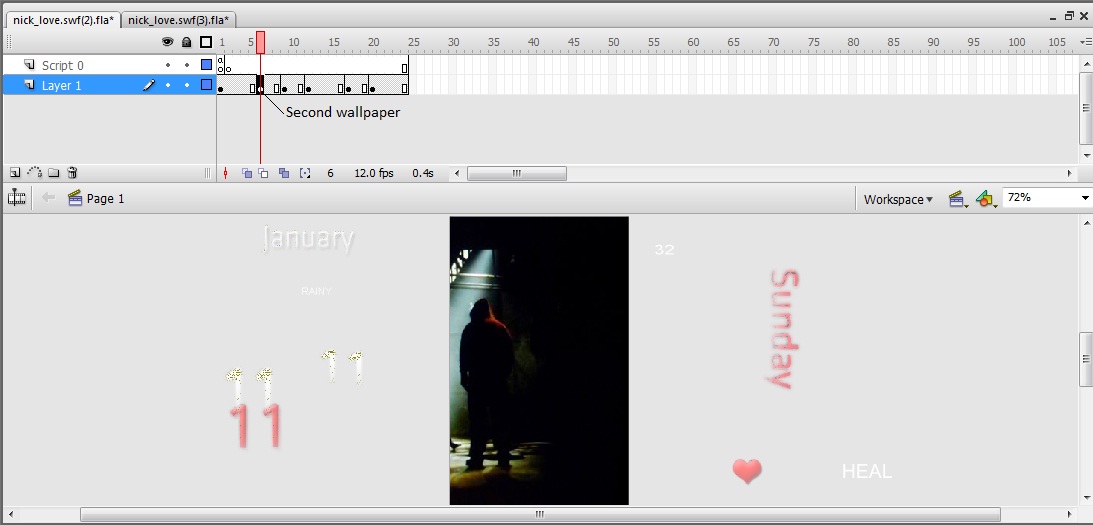
    => Now double click the movie clip and inside the clip, divide the frames on the timeline into 24 parts according to your wish as to at what time you want which wallpaper to appear. You just have to add a key frame and blank frames after them. Once you want to change the wallpaper, insert key frame again and repeat the same steps as before. Here's the screenshot for the same:


    => Once done with this, press back to go back to the previous screen.

    => Now that you are back on the main screen, create movie clips as follows: (Detailed information on how to create movie clips is mentioned in my previous tutorial)

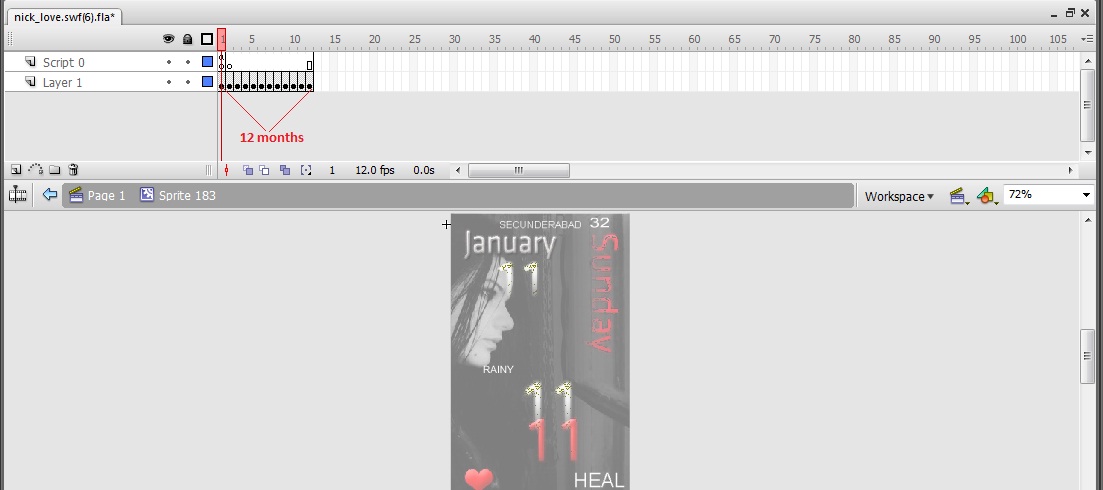
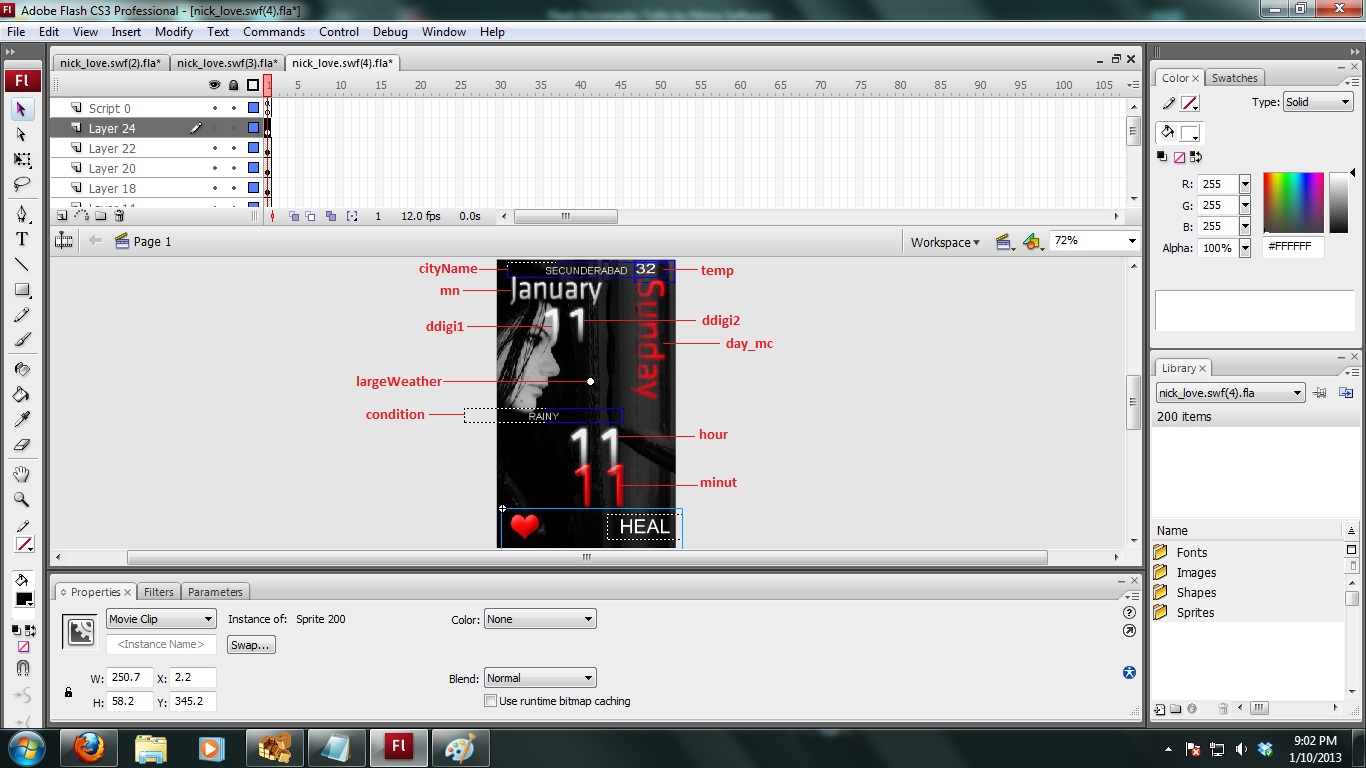
    => Create a movie clip for month name and change the instance name as mn. It is very necessary that you create graphics for month names as we are not going to use any plain text here. As you can see, I  have dragged January and converted it into a movie clip. Once I double click on January, the movie clip opens and we again divide the timeline into 12 parts as we have 12 months a year, one frame per month. Drag and drop the graphics that you created in each and every frame. Screenshot here:


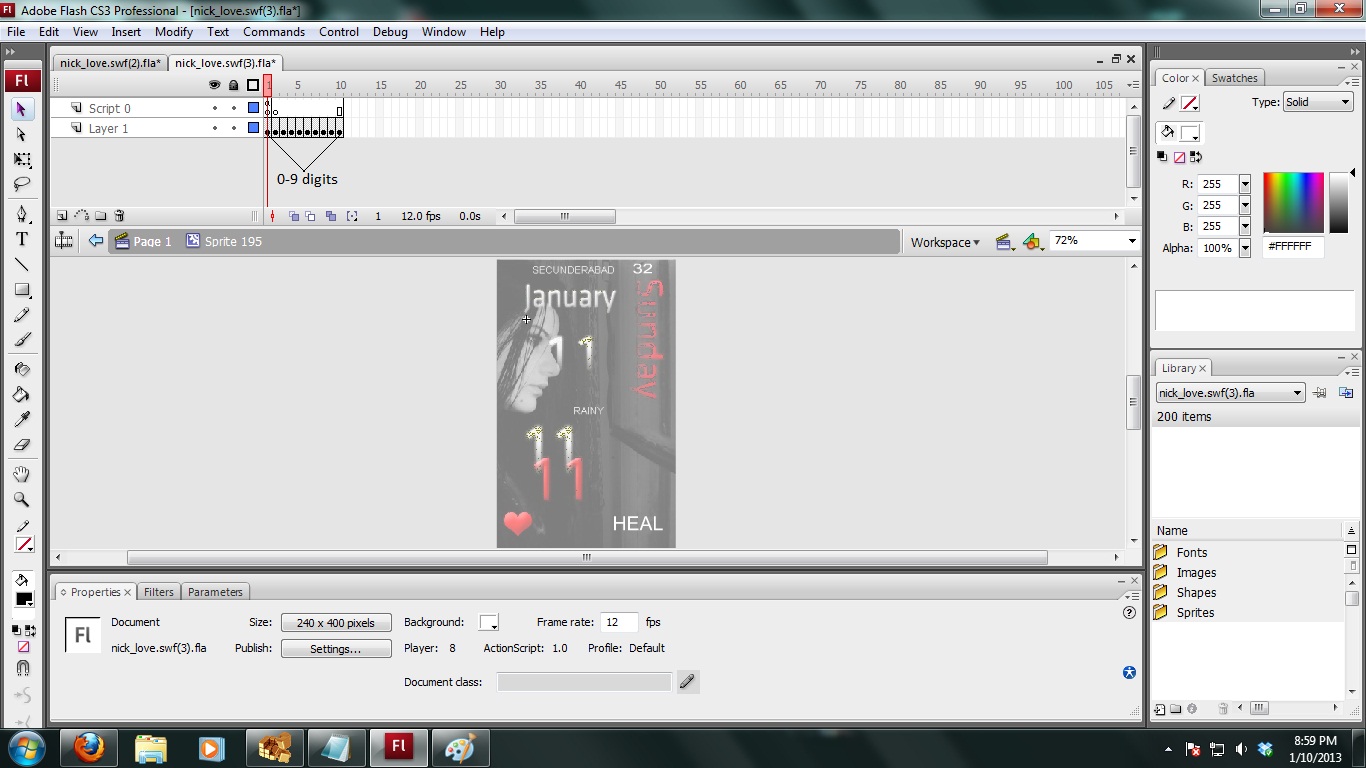
    => Similarly, create graphics from 0 to 10 for date digits and place them as required on the screen. Name the digit on right hand side to ddigi2 and other one as ddigi1.


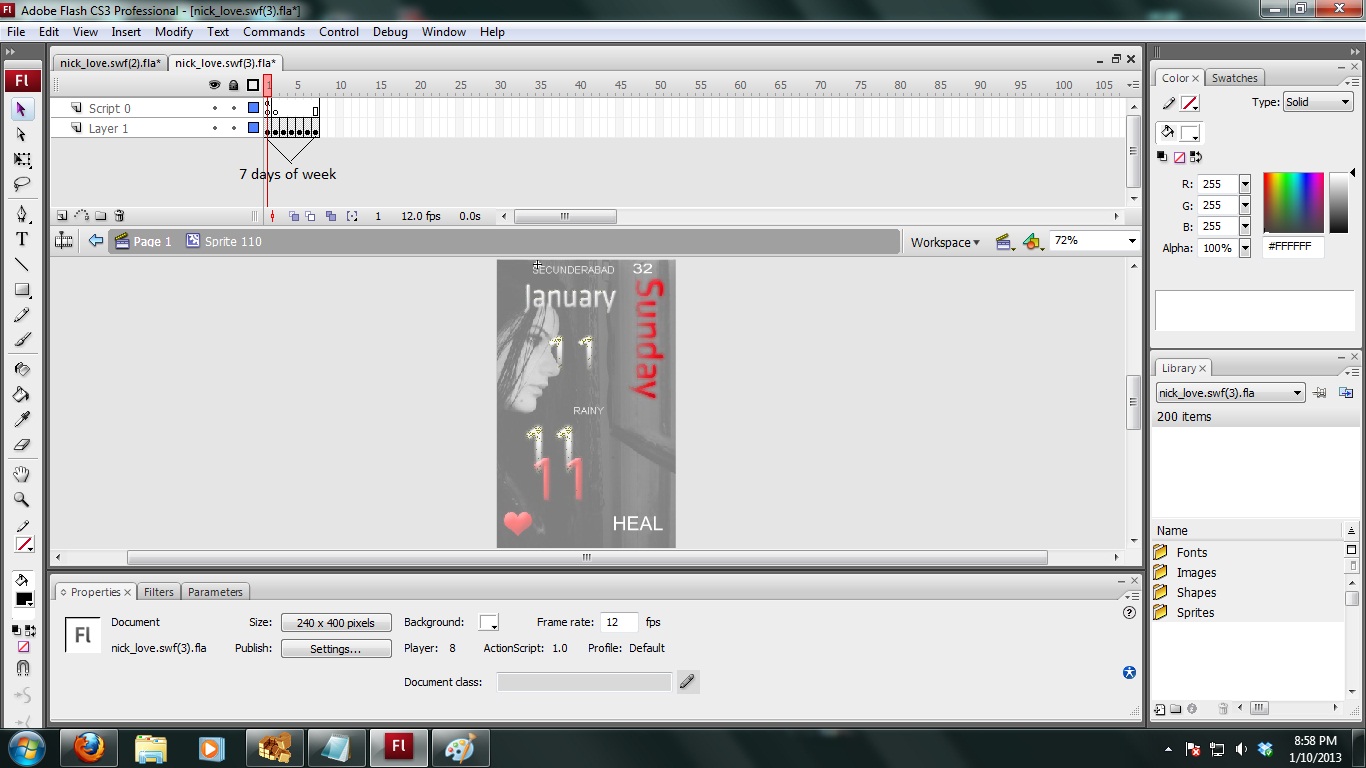
    => Now create graphics for days of week and do the same, i.e. converting to movie clip (instance name of movie clip: day_mc), double click and place each day's graphics on each frame. Screenshot here:


    => Now create two movie clips namely minut and hour to show hour and minutes digits. Inside hour movie clip create two movie clips for two digits of hour and change their instance name as hdigi1 and hdigi2 for the left digit and right digit respectively. Do the same for minutes and name them as mdigi1 and mdigi2.

    => Also place the movie clips for slide and weather as mentioned in my previous tutorial. Here's how the screen looks after everything is on place.


    Now that we are done with the graphics and stuff, let's move on to coding.

    CODING
    ======

    => Make a layer above all the layers, name it as script, press f9 and copy the following code

    --------------------------------------------------------------------------------------------------------------
    function minutes()
    {
        var __reg0;
        var __reg6 = new Date();
        var __reg4 = __reg6.getMinutes();
        var __reg5 = new String(__reg4);
        var __reg3 = __reg5.charAt(0);
        var __reg2 = __reg5.charAt(1);
        if (__reg4 == 0)
        {
            __reg3 = "0";
            __reg2 = "0";
        }
        if (__reg4 < 10)
        {
            _root.minut.mdigi1.gotoAndStop(10);
            _root.minut.mdigi2.gotoAndStop(__reg3);
        }
        else
        {
            _root.minut.mdigi1.gotoAndStop(__reg3);
        }
        if (__reg2 == 0)
        {
            _root.minut.mdigi2.gotoAndStop(10);
        }
        else
        {
            _root.minut.mdigi2.gotoAndStop(__reg2);
        }
        __reg0 = undefined;
        __reg3 = undefined;
        __reg4 = undefined;
        __reg2 = undefined;
        return __reg0;
    }
    function updateAll()
    {
        var __reg2 = new Date();
        var __reg1 = __reg2.getHours();
        bg.gotoAndStop(__reg1 + 1);
        if (lastUpdateHour != __reg1)
        {
            lastUpdateHour = __reg1;
            bg.gotoAndStop(__reg1 + 1);
        }
    }
    function hours()
    {
        var __reg0;
        var __reg6 = new Date();
        var __reg2 = __reg6.getHours();
        var __reg5 = new String(__reg2);
        var __reg4 = __reg5.charAt(0);
        var __reg3 = __reg5.charAt(1);
        if (__reg2 == 0)
        {
            __reg4 = "0";
            __reg3 = "0";
        }
        if (__reg2 < 10)
        {
            _root.hour.hdigi1.gotoAndStop(3);
            _root.hour.hdigi2.gotoAndStop(__reg4);
        }
        else
        {
            _root.hour.hdigi1.gotoAndStop(__reg4);
        }
        if (__reg3 == 0)
        {
            _root.hour.hdigi2.gotoAndStop(10);
        }
        else
        {
            _root.hour.hdigi2.gotoAndStop(__reg3);
        }
        __reg0 = undefined;
        __reg3 = undefined;
        __reg4 = undefined;
        __reg2 = undefined;
        return __reg0;
    }
    function dodate()
    {
        mnth = ["JANUARY", "FEBRUARY", "MARCH", "APRIL", "MAY", "JUNE", "JULY", "AUGUST", "SEPTEMBER", "OCTOBER", "NOVEMBER", "DECEMBER"];
        dow = ["SUNDAY", "MONDAY", "TUESDAY", "WEDNESDAY", "THURSDAY", "FRIDAY", "SATURDAY"];
        now = new Date();
        dte = now.getDate();
        var __reg2 = new String(dte);
        var __reg4 = __reg2.charAt(0);
        var __reg3 = __reg2.charAt(1);
        if (dte < 10)
        {
            _root.ddigi1.gotoAndStop(4);
            _root.ddigi2.gotoAndStop(__reg4);
        }
        else
        {
            _root.ddigi1.gotoAndStop(__reg4);
        }
        if (__reg3 == 0)
        {
            _root.ddigi2.gotoAndStop(10);
        }
        else
        {
            _root.ddigi2.gotoAndStop(__reg3);
        }
        __reg2 = undefined;
        __reg4 = undefined;
        __reg3 = undefined;
        day = dow[now.getDay()];
        mon = mnth[now.getMonth()];
        if (day == "SUNDAY")
        {
            _root.day_mc.gotoAndStop(1);
        }
        if (day == "MONDAY")
        {
            _root.day_mc.gotoAndStop(2);
        }
        if (day == "TUESDAY")
        {
            _root.day_mc.gotoAndStop(3);
        }
        if (day == "WEDNESDAY")
        {
            _root.day_mc.gotoAndStop(4);
        }
        if (day == "THURSDAY")
        {
            _root.day_mc.gotoAndStop(5);
        }
        if (day == "FRIDAY")
        {
            _root.day_mc.gotoAndStop(6);
        }
        if (day == "SATURDAY")
        {
            _root.day_mc.gotoAndStop(7);
        }
        if (mon == "JANUARY")
        {
            _root.mn.gotoAndStop(1);
        }
        if (mon == "FEBRUARY")
        {
            _root.mn.gotoAndStop(2);
        }
        if (mon == "MARCH")
        {
            _root.mn.gotoAndStop(3);
        }
        if (mon == "APRIL")
        {
            _root.mn.gotoAndStop(4);
        }
        if (mon == "MAY")
        {
            _root.mn.gotoAndStop(5);
        }
        if (mon == "JUNE")
        {
            _root.mn.gotoAndStop(6);
        }
        if (mon == "JULY")
        {
            _root.mn.gotoAndStop(7);
        }
        if (mon == "AUGUST")
        {
            _root.mn.gotoAndStop(8);
        }
        if (mon == "SEPTEMBER")
        {
            _root.mn.gotoAndStop(9);
        }
        if (mon == "OCTOBER")
        {
            _root.mn.gotoAndStop(10);
        }
        if (mon == "NOVEMBER")
        {
            _root.mn.gotoAndStop(11);
        }
        if (mon == "DECEMBER")
        {
            _root.mn.gotoAndStop(12);
        }
    }
    function prep()
    {
        condition._y = condition._y + fontHeightAdjustment;
        updatetime._y = updatetime._y + fontHeightAdjustment;
        cityName._y = cityName._y + fontHeightAdjustment;
        temp._y = temp._y + fontHeightAdjustment;
        minMax._y = minMax._y + fontHeightAdjustment;
        smallWeather1.day._y = smallWeather1.day._y + fontHeightAdjustment;
        smallWeather1.minMax._y = smallWeather1.minMax._y + fontHeightAdjustment;
        smallWeather2.day._y = smallWeather2.day._y + fontHeightAdjustment;
        smallWeather2.minMax._y = smallWeather2.minMax._y + fontHeightAdjustment;
        smallWeather3.day._y = smallWeather3.day._y + fontHeightAdjustment;
        smallWeather3.minMax._y = smallWeather3.minMax._y + fontHeightAdjustment;
        smallWeather4.day._y = smallWeather4.day._y + fontHeightAdjustment;
        smallWeather4.minMax._y = smallWeather4.minMax._y + fontHeightAdjustment;
        cityName.text = city;
        if (ampm)
        {
            var __reg2 = updateTime.indexOf(":");
            var __reg1 = parseInt(updateTime.substring(0, __reg2));
            var __reg3 = updateTime.substring(__reg2 + 1, __reg2 + 3);
            __reg3 = __reg1 < 12 ? "AM" : "PM";
            if (__reg1 > 12)
            {
                __reg1 = __reg1 - 12;
            }
            else if (__reg1 == 0)
            {
                __reg1 = 12;
            }
            updatetime.text = __reg1 + ":" + __reg3 + " " + __reg3;
            refreshIcon._x = 43;
        }
        else
        {
            updatetime.text = updateTime;
            refreshIcon._x = 57;
        }
        autoUpdate();
    }
    function setWeather()
    {
        var __reg8 = new Date();
        var __reg4 = __reg8.getHours();
        var __reg9 = __reg8.getDate();
        if (lastUpdateDay != __reg9 || lastUpdateHour != __reg4)
        {
            var __reg10 = __reg8.getFullYear();
            var __reg11 = __reg8.getMonth();
            var __reg7 = __reg8.getDay();
            var __reg6 = __reg10 + "/" + (__reg11 + 1) + "/" + __reg9;
            lastUpdateHour = __reg4;
            lastUpdateDay = __reg9;
            var __reg3 = -1;
            var __reg2 = 0;
            while (__reg2 < weatherDate.length && __reg3 == -1)
            {
                if (weatherDate[__reg2] == __reg6)
                {
                    __reg3 = __reg2;
                    if (__reg4 < 6 || __reg4 >= 18)
                    {
                        if (__reg4 < 6 && __reg3 - 1 >= 0)
                        {
                            __reg4 = parseInt(weatherNightState[__reg3 - 1]);
                            largeWeather.gotoAndStop(__reg4 + 1);
                            condition.text = weatherConditions[__reg4];
                            minMax.text = toUnits(weatherNightMin[__reg3 - 1]) + " / " + toUnits(weatherNightMax[__reg3 - 1]) + "";
                            __reg6 = (parseInt(weatherNightMin[__reg3 - 1]) + parseInt(weatherNightMax[__reg3 - 1])) / 2;
                            temp.text = Math.round(toUnits(__reg6)) + "";
                        }
                        else
                        {
                            __reg4 = parseInt(weatherNightState[__reg3]);
                            largeWeather.gotoAndStop(__reg4 + 1);
                            condition.text = weatherConditions[__reg4];
                            minMax.text = toUnits(weatherNightMin[__reg3]) + " / " + toUnits(weatherNightMax[__reg3]) + "";
                            __reg6 = (parseInt(weatherNightMin[__reg3]) + parseInt(weatherNightMax[__reg3])) / 2;
                            temp.text = Math.round(toUnits(__reg6)) + "";
                        }
                    }
                    else
                    {
                        __reg4 = parseInt(weatherDayState[__reg3]);
                        largeWeather.gotoAndStop(__reg4 + 1);
                        condition.text = weatherConditions[__reg4];
                        minMax.text = toUnits(weatherDayMin[__reg3]) + " / " + toUnits(weatherDayMax[__reg3]) + "";
                        __reg6 = (parseInt(weatherDayMin[__reg3]) + parseInt(weatherDayMax[__reg3])) / 2;
                        temp.text = Math.round(toUnits(__reg6)) + "";
                    }
                    __reg2 = 1;
                    while (__reg2 <= 4)
                    {
                        if (__reg3 + __reg2 < daysOfData)
                        {
                            __reg4 = parseInt(weatherDayState[__reg3 + __reg2]);
                            this["smallWeather" + __reg2].gotoAndStop(__reg4 + 1);
                            var __reg5 = __reg7 + __reg2;
                            if (__reg5 > 6)
                            {
                                __reg5 = __reg5 - 7;
                            }
                            this["smallWeather" + __reg2].day.text = days[__reg5];
                            this["smallWeather" + __reg2].minMax.text = toUnits(weatherDayMin[__reg3 + __reg2]) + "/" + toUnits(weatherDayMax[__reg3 + __reg2]) + "";
                        }
                        else
                        {
                            this["smallWeather" + __reg2].gotoAndStop(1);
                            this["smallWeather" + __reg2].day.text = "";
                            this["smallWeather" + __reg2].minMax.text = "";
                        }
                        ++__reg2;
                    }
                }
                ++__reg2;
            }
            if (__reg3 == -1)
            {
                cityName.text = "weather.txt file is out of date!";
            }
        }
    }
    function toUnits(celcius)
    {
        return farenheit ? Math.round(celcius * 9 / 5 + 32) : celcius;
    }
    function autoUpdate()
    {
        this.onEnterFrame = function ()
        {
            if (time < 3)
            {
                ++time;
                return undefined;
            }
            setWeather();
            time = 0;
        }
        ;
    }
    function load_xml()
    {
        var __reg3 = false;
        xml = new XML();
        xml.ignoreWhite = true;
        xml.onLoad = function (success)
        {
            var __reg0;
            if (success)
            {
                city = xml.firstChild.firstChild.attributes.Loc;
                if (city == undefined)
                {
                    cityName.embedFonts = true;
                    cityName.text = "weather.txt file is corrupted!";
                }
                else
                {
                    cityID = xml.firstChild.firstChild.attributes.LocID;
                    updateDate = xml.firstChild.firstChild.attributes.UpdateDate;
                    updateTime = xml.firstChild.firstChild.attributes.UpdateTime;
                    daysOfData = xml.firstChild.firstChild.childNodes.length;
                    var __reg1 = 0;
                    while (__reg1 < daysOfData)
                    {
                        weatherDate[__reg1] = xml.firstChild.firstChild.childNodes[__reg1].attributes.StartDate;
                        weatherDayState[__reg1] = xml.firstChild.firstChild.childNodes[__reg1].childNodes[0].attributes.State;
                        weatherDayMin[__reg1] = xml.firstChild.firstChild.childNodes[__reg1].childNodes[0].firstChild.attributes.Min;
                        weatherDayMax[__reg1] = xml.firstChild.firstChild.childNodes[__reg1].childNodes[0].firstChild.attributes.Max;
                        weatherNightState[__reg1] = xml.firstChild.firstChild.childNodes[__reg1].childNodes[1].attributes.State;
                        weatherNightMin[__reg1] = xml.firstChild.firstChild.childNodes[__reg1].childNodes[1].firstChild.attributes.Min;
                        weatherNightMax[__reg1] = xml.firstChild.firstChild.childNodes[__reg1].childNodes[1].firstChild.attributes.Max;
                        ++__reg1;
                    }
                    prep();
                }
            }
            else
            {
                cityName.embedFonts = true;
                cityName.text = "weather.txt file not found!";
            }
            __reg0 = undefined;
            __reg1 = undefined;
            return __reg0;
        }
        ;
        xml.load(this._url.slice(0, this._url.lastIndexOf("/")) + "/weather.txt");
    }
    setInterval(this, "minutes", 1000);
    minutes();
    setInterval(this, "updateAll", 10000);
    updateAll();
    setInterval(this, "hours", 1000);
    hours();
    setInterval(this, "dodate", 50000);
    dodate();
    var city;
    var cityID;
    var updateDate;
    var updateTime;
    var daysOfData;
    var weatherDate;
    var weatherDayState;
    var weatherDayMin;
    var weatherDayMax;
    var weatherNightState;
    var weatherNightMin;
    var weatherNightMax;
    var fontHeightAdjustment = this._parent._parent._parent.fontHeightAdjustment;
    var model = this._parent._parent._parent.model;
    var theme = this._parent._parent._parent.theme;
    var time = 0;
    var farenheit = this._parent._parent._parent.temperatureUnit == "F" ? true : false;
    var ampm = this._parent._parent._parent.ampm ? true : false;
    var lastUpdateHour = -1;
    var lastUpdateDay = -1;
    var daysOfData = 0;
    var days;
    var weatherConditions;
    if (theme == "HTCHero")
    {
        days = this._parent._parent._parent.widgetLang_ShortDays;
        weatherConditions = this._parent._parent._parent.widgetLang_WeatherStates;
        city = this._parent._parent._parent.city;
        if (city == undefined)
        {
            cityName.embedFonts = true;
            cityName.text = "weather.txt file not found!";
        }
        else
        {
            cityID = this._parent._parent._parent.cityID;
            updateDate = this._parent._parent._parent.updateDate;
            updateTime = this._parent._parent._parent.updateTime;
            daysOfData = this._parent._parent._parent.daysOfData;
            weatherDate = this._parent._parent._parent.weatherDate;
            weatherDayState = this._parent._parent._parent.weatherDayState;
            weatherDayMin = this._parent._parent._parent.weatherDayMin;
            weatherDayMax = this._parent._parent._parent.weatherDayMax;
            weatherNightState = this._parent._parent._parent.weatherNightState;
            weatherNightMin = this._parent._parent._parent.weatherNightMin;
            weatherNightMax = this._parent._parent._parent.weatherNightMax;
            prep();
        }
    }
    else
    {
        days = new Array("Sun", "Mon", "Tue", "Wed", "Thu", "Fri", "Sat");
        weatherConditions = new Array("Sunny", "Mostly Sunny", "Partly Sunny", "Intermittent Clouds", "Hazy Sunshine", "Mostly Cloudy", "Cloudy", "Dreary", "", "", "Fog", "Showers", "Mostly Cloudy with Showers", "Partly Sunny with Showers", "Thunderstorms", "Mostly Cloudy with Thunder Showers", "Partly Sunny with Thunder Showers", "Rain", "Flurries", "Mostly Cloudy with Flurries", "Partly Sunny with Flurries", "Snow", "Mostly Cloudy with Snow", "Ice", "Sleet", "Freezing Rain", "", "", "Rain and Snow", "Hot", "Cold", "Windy", "Clear", "Mostly Clear", "Partly Cloudy", "Intermittent Clouds", "Hazy", "Mostly Cloudy", "Partly Cloudy with Showers", "Mostly Cloudy with Showers", "Partly Cloudy with Thunder Showers", "Mostly Cloudy with Thunder Showers", "Mostly Cloudy with Flurries", "Mostly Cloudy with Snow");
        weatherDate = new Array();
        weatherDayState = new Array();
        weatherDayMin = new Array();
        weatherDayMax = new Array();
        weatherNightState = new Array();
        weatherNightMin = new Array();
        weatherNightMax = new Array();
        load_xml();
    }

    -----------------------------------------------------------------------------------------------------------

    Its very easy to understand the code as to how we manipulate the graphics depending upon the date and day value. Please try to u nderstand it and if you have any doubts do let me know via your comments and I will get back to you..

    Also, go inside all other movie clips of Month Day and digits, make a new layer, name it as script, press f9 and write the following script

    stop();

    Also, go to the slider and put the following code:

    on(press)
    {
        this.startDrag(false, 0, 0, 130, 0);
    }
    on(releaseOutside, release)
    {
        stopDrag();
        if (this._x == 130)
        {
            fscommand("send", "KeyUnlock");
            this._x = 0;
        }
        else
        {
            this._x = 0;
        }
    }
     
    Explanation of the code is in my previous tutorial..

    This is what we get at last..

    Give it a try.

    Note: In case you are not aware of how to make movie clips do read my previous tutorial here: http://info-legion.blogspot.in/2012/06/making-lockscreen-actionscript-tutorial.html
    Cheers
    0

    Add a comment

  8. First Normal Formal
    --------------------------

    Before going to Normal Forms, lets have an understanding of Normalization. Normalization is the process of making data consistent and non-redundant by splitting an entity into multiple entities according to some rules and we define a relationship between them. There are broadly four Normal Forms which I will be covering in separate posts. Let's have a look into First Normal Form (1NF) in this post.

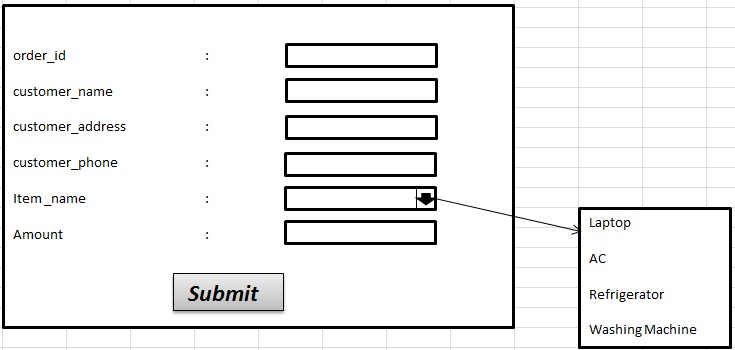
    Rather than directly going on to the definition of 1NF, let's take a scenario and let's try to figure out why do we need 1NF. Consider that I opened an electronics store in locality. To record the transactions, I have a front end application as shown in the figure below:


    The customer has to select and item from the drop down list for item-name as shown. Once the item is selected, we enter the amount and click Submit. Once Submit is clicked the data is then stored in the back end in a table as shown:


    So, my store was going good for a month and the application was working good but one day, I was approached by a person who wanted to purchase a refrigerator and a laptop. Now, as the front end of my application has option of selecting just one item from the list how do I incorporate the purchase of three different items which should be coming under the same order? After thinking a bit, I had a workaround wherein I placed 2 list boxes for 2 Items. This can be stored in table as shown below:

     It is very difficult to store this data in back end and this is where we have the need of 1NF. Instead of storing data as shown, I divide each item into separate rows as shown below.


    This is called 1NF. Now going by the definition "A table is said to be in 1NF if it contains all atomic (one value in one cell) values". We did the same in the scenario. We had different rows for each item. If we look at the above table, we can still see some redundancy as for dividing items into separate rows, we are having other column values same. Another workaround for this can be to have separate column for each item as shown below. But, when my store began to grow with more number of items coming in, I can't just keep on adding columns in my table, this will lead to a very bad design and will surely give operational burden.

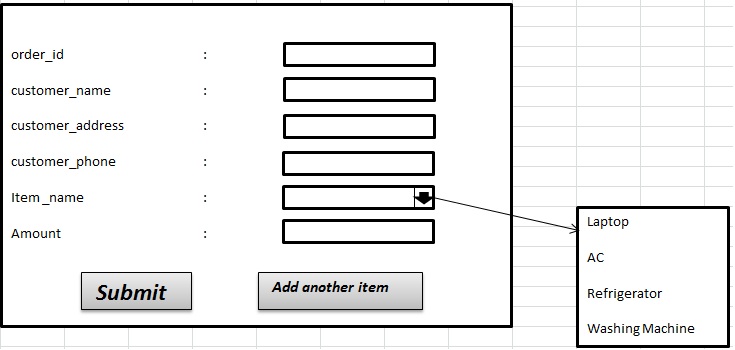
    So what do we do here? Here's the catch, we split the table into two tables and modify the front end form. This can be done as follows:

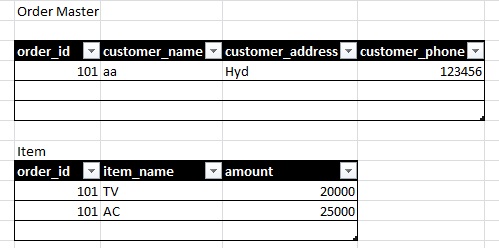
    As shown in the figure, we added a button called add another item which will insert an entry into Items tables and wait for next item information to be provided. Also, we removed item name column from the master table and stored it with the corresponding order_id in another table. Here order_id is the primary key in order master table and foreign key in items table. In this way we have a relationship between the two tables. So whenever we have to get data from both the tables, we can use a join operation.


    This was the motivation towards First Normal Form. Please take time to understand it and leave a comment in case there are any doubts, I will get back to you soon.

    Thanks
    --Nick
    1

    View comments


  9. Are looks of a person fit to be judging people? In the world of teenagers today, looks seem to be the only metric that is used to measure the worth of a person in society. There was a great episode shown on Gumrah (Channel V) that very aptly shows this reality. What is the need of looks in the present world? Is it good to discriminate someone on the basis of something that is god's gift? Why teenagers today search for a person who looks good for a relation and not a person who is apt? Here is the story shown in the TV Show.


    "There was a guy in a college, a rock star, great in looks and with an unprecedented talent of singing and dancing in the whole college. He started dating the most beautiful girl from his college. The girl wanted her boyfriend to be according to her standard so that when people look at them, they can't stop themselves from praising the couple. She liked how popular the guy was and also liked her style and her hair. Here was a turning point, the guy's hairs were falling because of a disease and he always wore a hair wig and nobody was aware of it. The girl and the guy went on in a relationship and that was the time when he decided to tell the reality to the girl because he thought its the person's heart that is important in love and not just looks. On knowing the reality, the girl ditched the guy and teased him in front of the whole college. The guy's life in college was screwed post that incident and he went into a lot of depression thereafter. He came to college after a long break and the situation just worsened. The girl kept passing comments on him and that was the time when he lost his cool and threw Acid on the girl's face so that her ego of looks is destroyed for which he was arrested"

    Was this really important? It was not a good act but then again, what can a person do when he is left by all of his friends and neglected by everyone. Why do people forget that looks are temporary? It’s the qualities that take a person forward. With his quality of singing and dancing he would have gone a long way in life. Is the current world only looks-centric. It’s high time when we must rise upon this petty mentality and respect people for what they are. One can apply lot of make-up, spend a lot of time in parlors and gym but there are some things that are gift of god and can't be changed with creams. Food for thought. Isn't it?
    1

    View comments

  10. Hey guys! as many of the C programming beginners face problems in understanding the file management or file handling via C codes. I hereby provide a basic tutorial to understand this topic .
       
        The files can be handled Easily using file handling functions. Click Here to have a glance over the C functions. there are various modes of reading, writing and editing a file.

    For reading a file -> "r"
    For writing to file -> "w"
    For adding more content to a file -> "a" (append mode)

        If a file is not present in your computer and you try to open it in read mode, the program wont execute whereas if it is in write mode, then the program creates the file on its own.
       
        If the file is present in your computer and you open it in read mode i.e. "r", then the pointer in the file moves to top and starts reading from there. If it is in write mode then the contents present in file will be erased and the file will be made ready for new contents to be written on it whereas in append mode the pointer moves to the end of the file and allows the user to add more content to the file.

        There are many different modes suitable for efficient handling of files. To have a look over the different modes present, Click Here. I'm not mentioning all the modes here as it is a basic overlook where I will explain how the programs in C based on file management actually work.
       
        Let us take up our 1st example:-

    1) Writing content to a File.

       program:

        #include<conio.h>
        #include<stdio.h>
        #include<stdlib.h>
        int main()
         {
           char c;
           FILE *fp;   // Declaration of file pointer(s)
           system("cls");    // Clearing the screen
           printf("Enter text to file: \n\n");
           fp=fopen("write.txt","w");    //  opening file in write mode.
           while((c=getchar())!=EOF)    // reading text from keyboard EOF= ctrl+z or ctrl+d
              {
                fputc(c,fp);    // Copying text to file
              }
           fclose(fp);    // Closing the file
           getch();
         }


                                                                    Output screen


                                                                     Stored file  

        first we need to open the file in which the content is to be written. Hence we use a file handling function fopen("write.txt","w") for opening the file, where "write.txt" is the name of file and "w" represents the write mode. The next step is to read the content typed by the user hence we use getchar() which reads the character from keyboard and stores it in character 'c' one by one, which is then copied to the file using another file handling function fputc(c,fp) where c is the character read from the keyboard and 'fp' is the file pointer which tells the compiler to copy the character at the location where it is pointing. This is done Character by Character. Once you are satisfied by your text, press (ctrl+z) or (ctrl+d) to mark the EOF(End of File) marker, which tells the file pointer 'fp' when to come out of the loop. after the content is written to the file, we need to close the file. This is done to save the contents we have written. All the processes of fputc() is stored in buffer and if we don't close the file, all the contents will be vanished from the file, as buffer memory is a volatile memory. hence, to save the contents we use fclose(fp). So, this is how the above code actually works.

    2) Reading from the file.

        Now, as we have created the file "write.txt" using the above code, let us read the same file and display its content. The code used for this purpose is as follows: 

        #include<conio.h>
        #include<stdio.h>
        #include<stdlib.h>
        int main()
         {
           char c;
           FILE *fp;          // Declaration of file pointer(s)
           system("cls");          // Clearing the screen
           printf("Entered text in file: \n\n");
           fp=fopen("write.txt","r");       //  opening file in read mode.
           while((c=fgetc(fp))!=EOF)    // reading text from the file char by char
             {
               printf("%c",c);      // Printing the text on screen
            }
           fclose(fp);      // Closing the file
           getch();
         }


        The file handling function used in this code is fgetc(fp) which tells the compiler to get the character from file. The functions of the remaining file handling functions used in the code are already mentioned in (1).
        In this program, we open the file in read mode using "r" which tells the compiler to read from "write.txt". The characters read by the compiler using fgetc()  are first stored in buffer and then printed on to the screen one by one.


                                                                   Output screen


    And here's the 1st tutorial.! :)
    0

    Add a comment

Blog Archive
Popular Posts
Popular Posts
Loading
Send feedback
Dynamic Views template. Powered by Blogger.